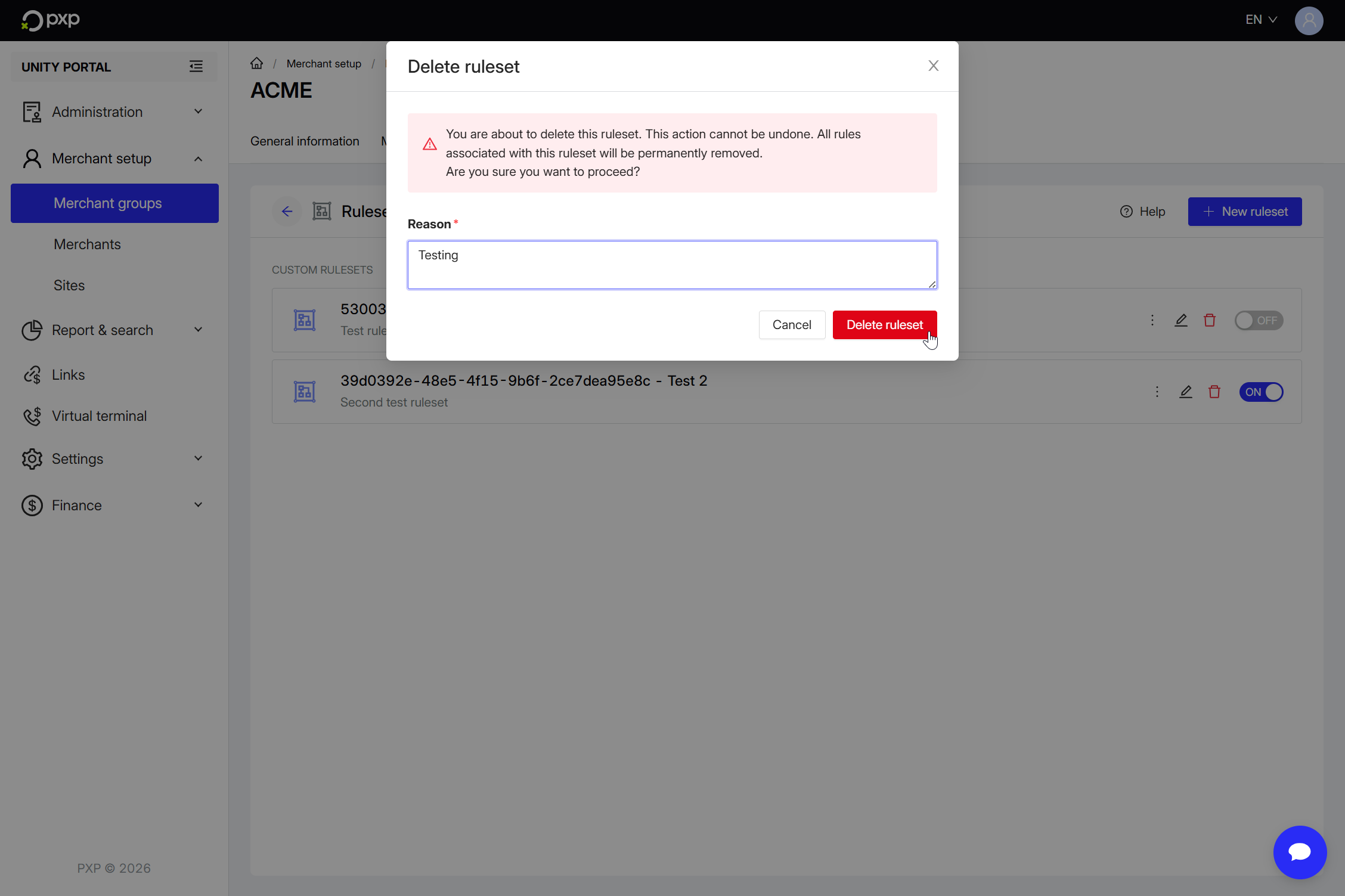
Update or delete an existing ruleset and its associated rules.
You can only have one active ruleset at any given time.
To enable a ruleset:
- In the Unity Portal, go to Merchant setup > Merchant groups.
- Select a merchant group.
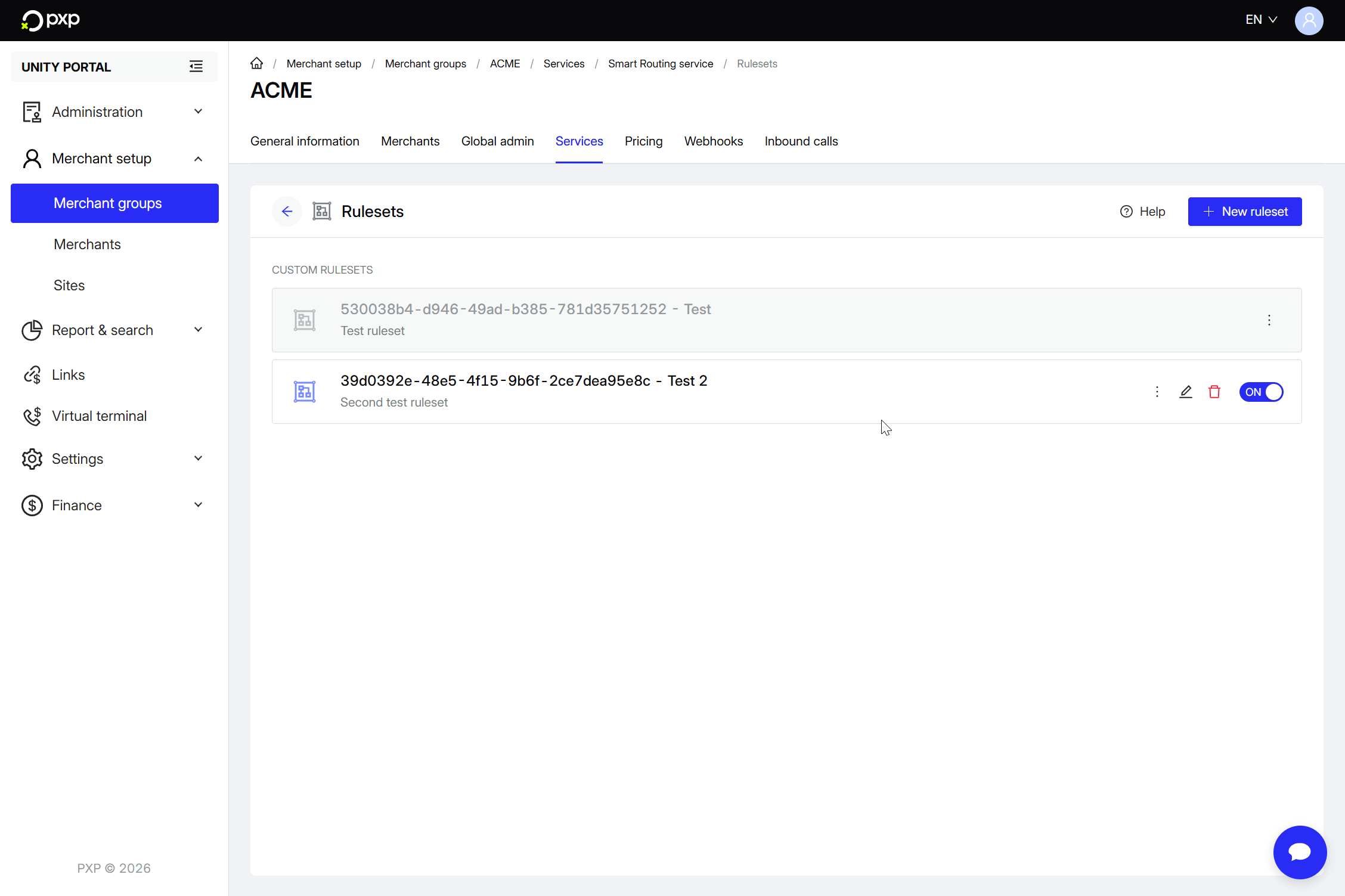
- In the Services tab, click Edit next to Smart Routing service.
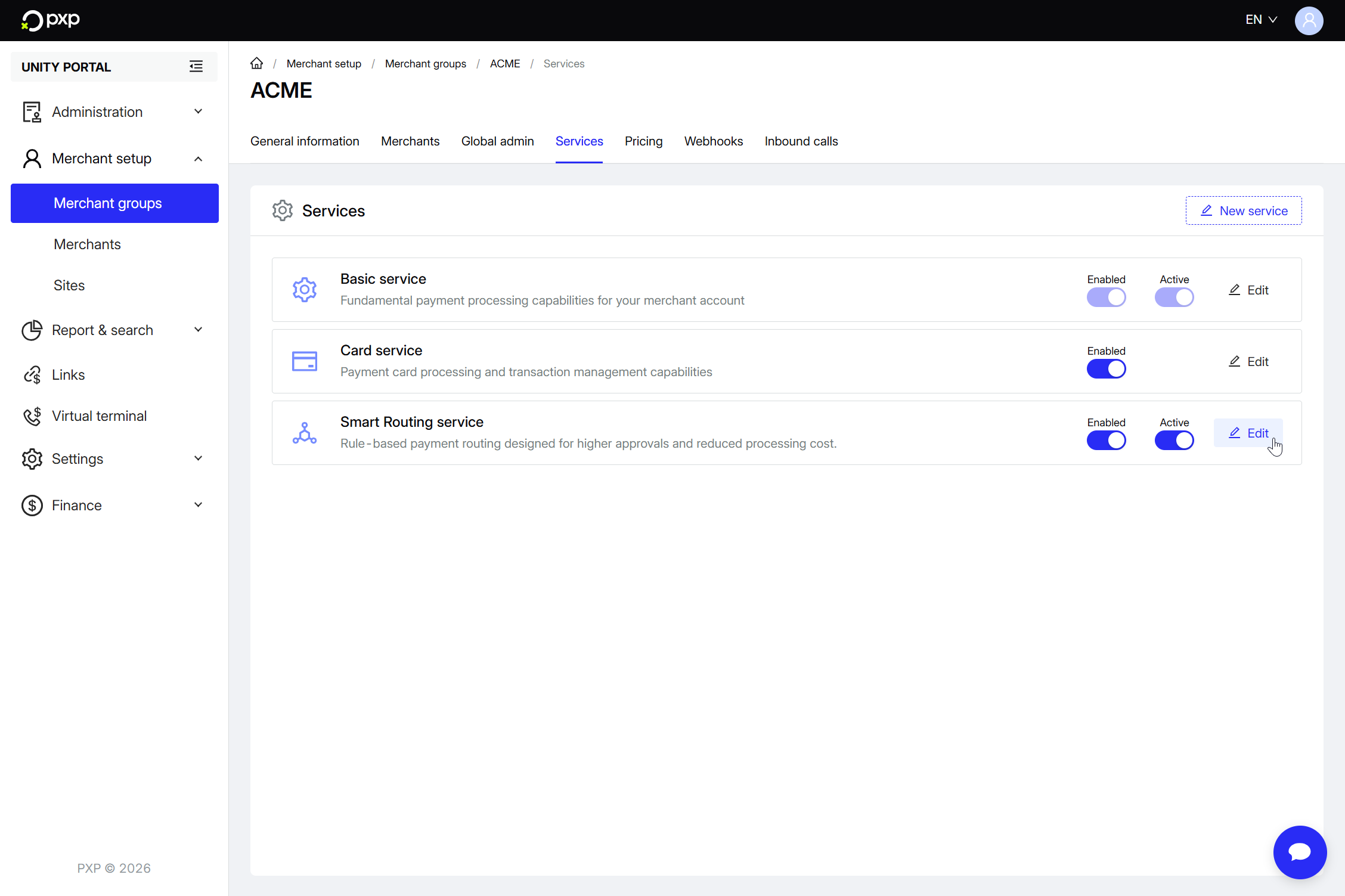
- Find the ruleset you want to activate, then switch the toggle from OFF to ON.
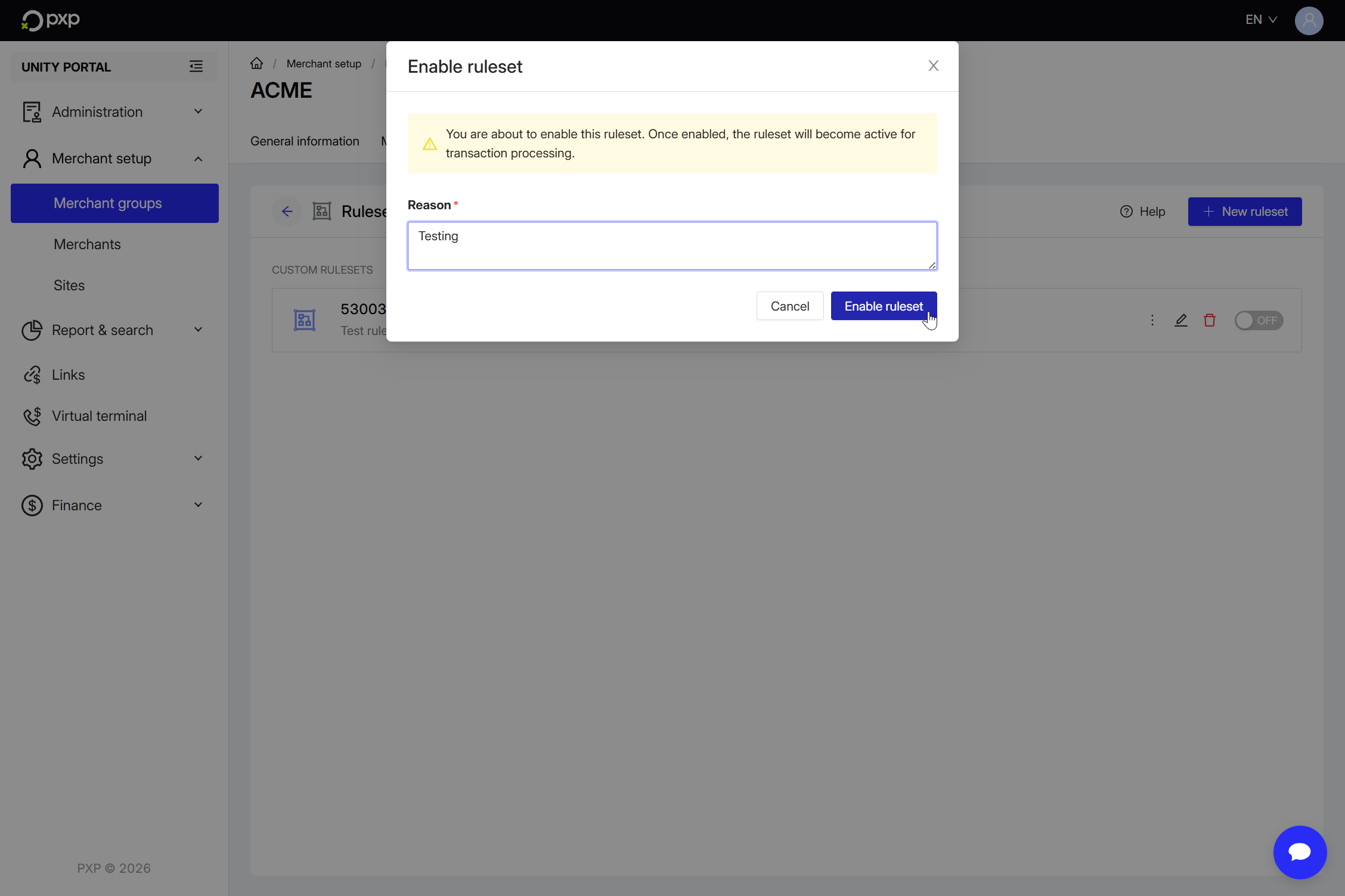
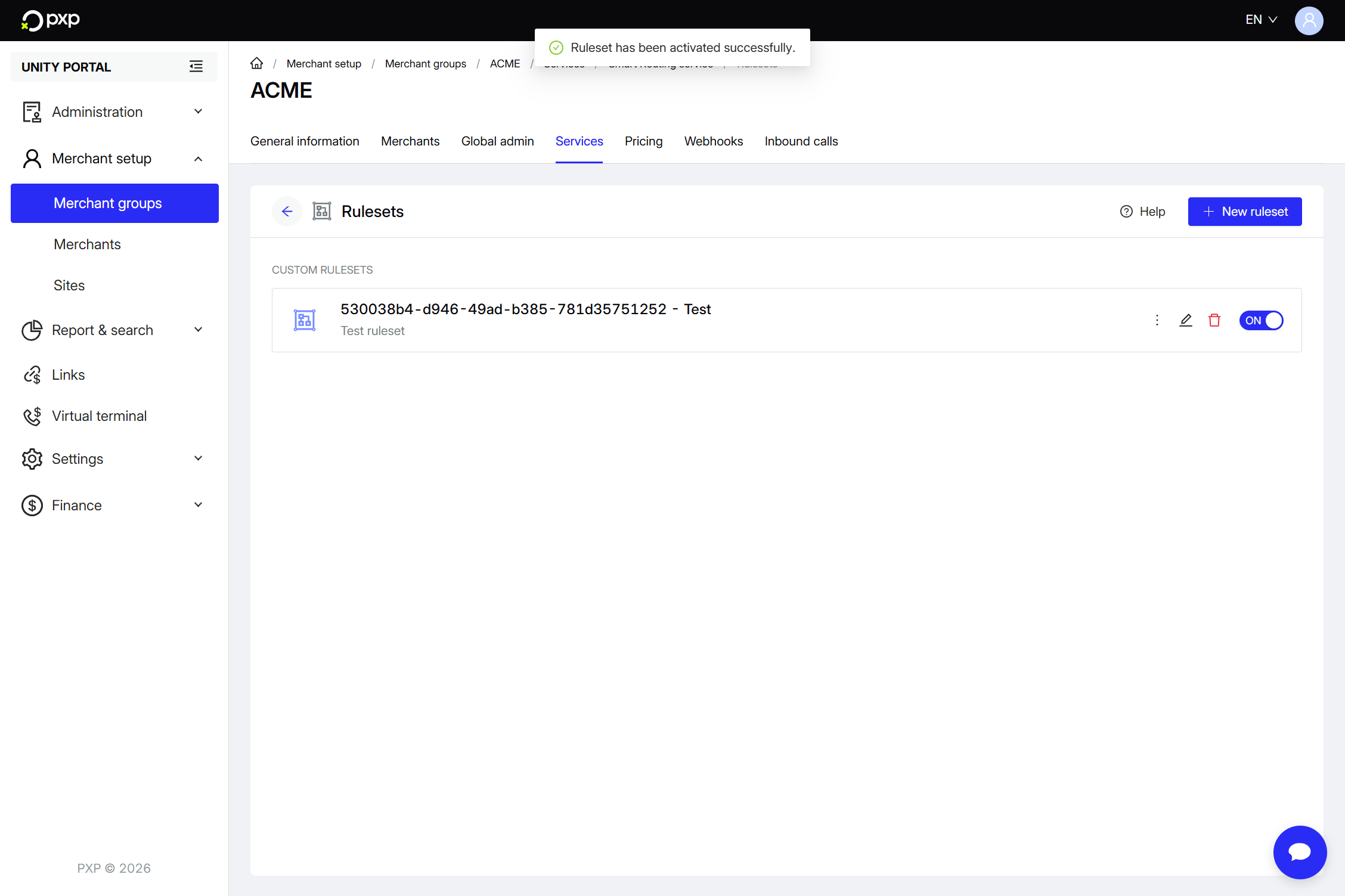
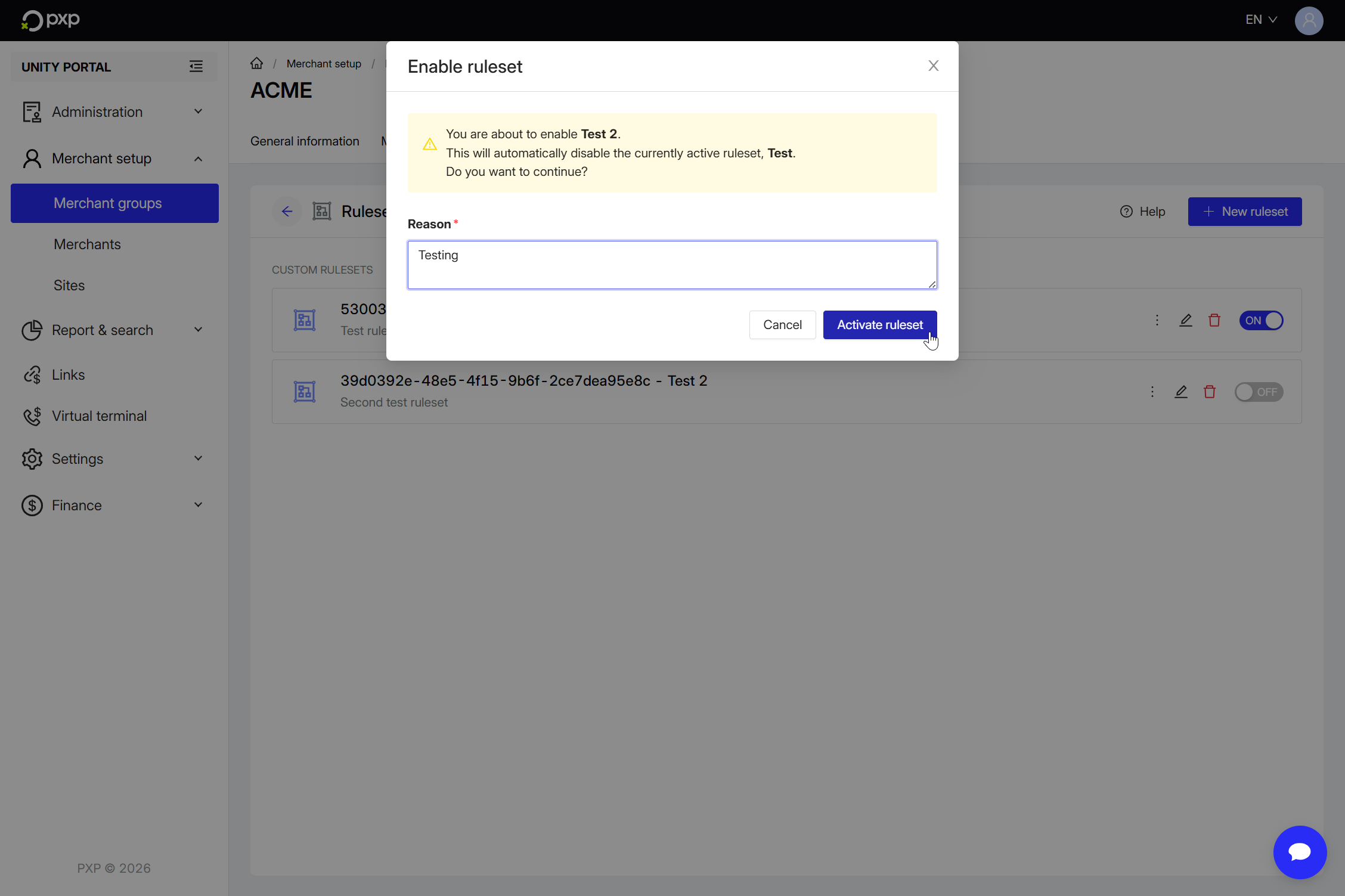
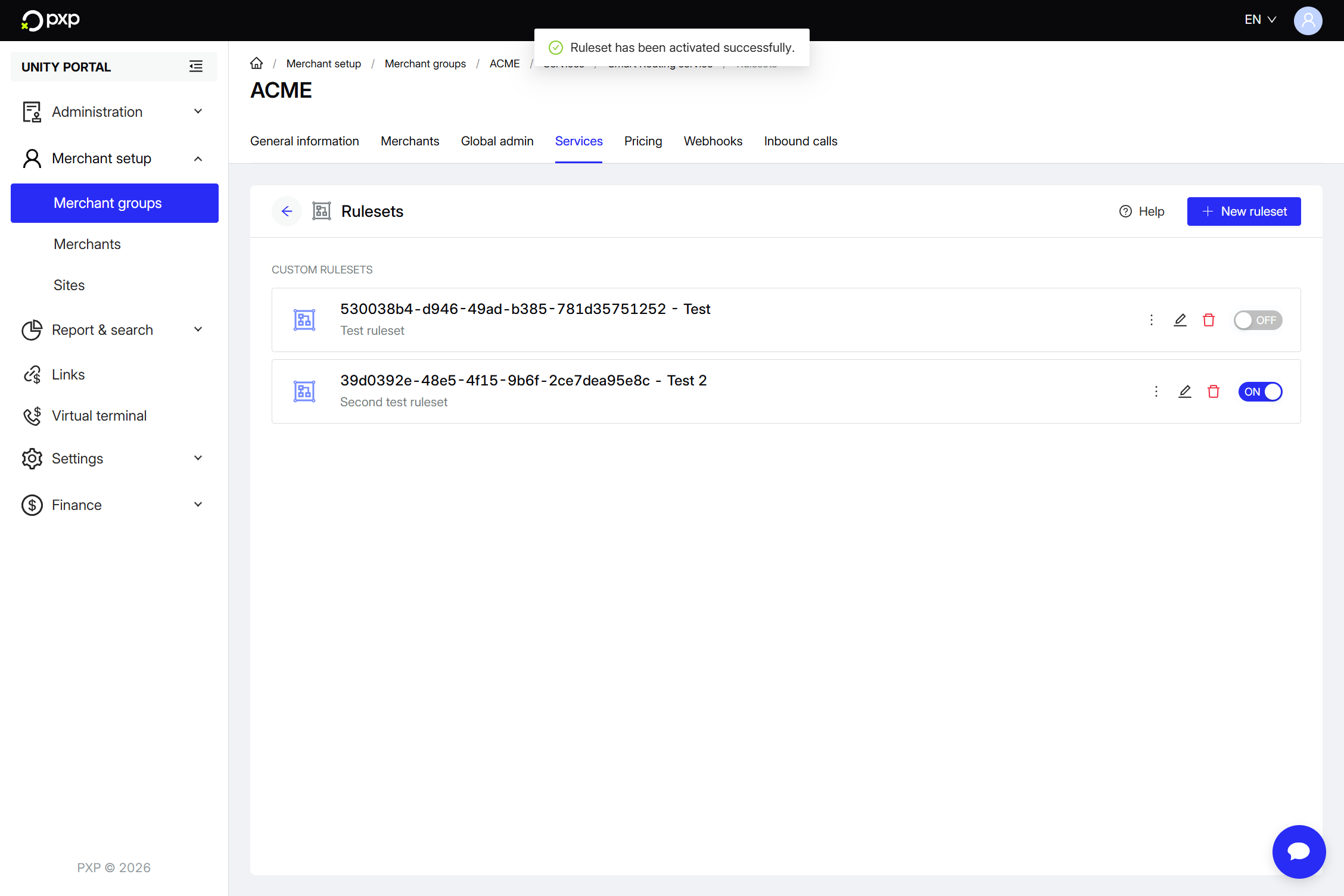
- The Enable ruleset modal opens:
- If there's no active ruleset, enter a descriptive reason and click Enable ruleset.Your ruleset's status is updated and a success message is displayed.
- If there's already an active ruleset, a message saying it will automatically be disabled is displayed. Enter a descriptive reason and click Activate ruleset.Your ruleset's status is updated and a success message is displayed.
- If there's no active ruleset, enter a descriptive reason and click Enable ruleset.
To deactivate a ruleset:
- In the Unity Portal, go to Merchant setup > Merchant groups.
- Select a merchant group.
- In the Services tab, click Edit next to Smart Routing service.
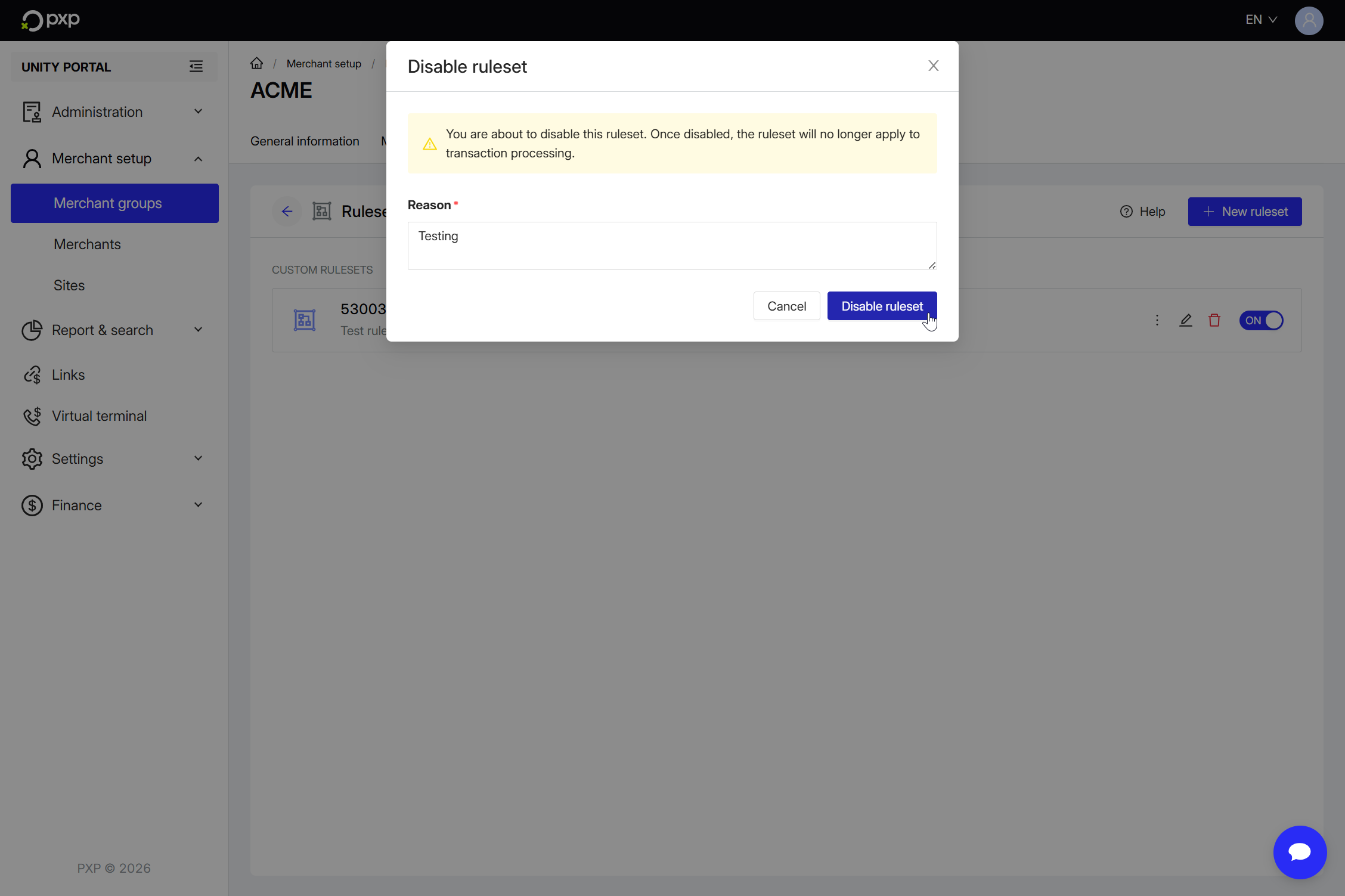
- Find the ruleset you want to deactivate, then switch the toggle from ON to OFF.
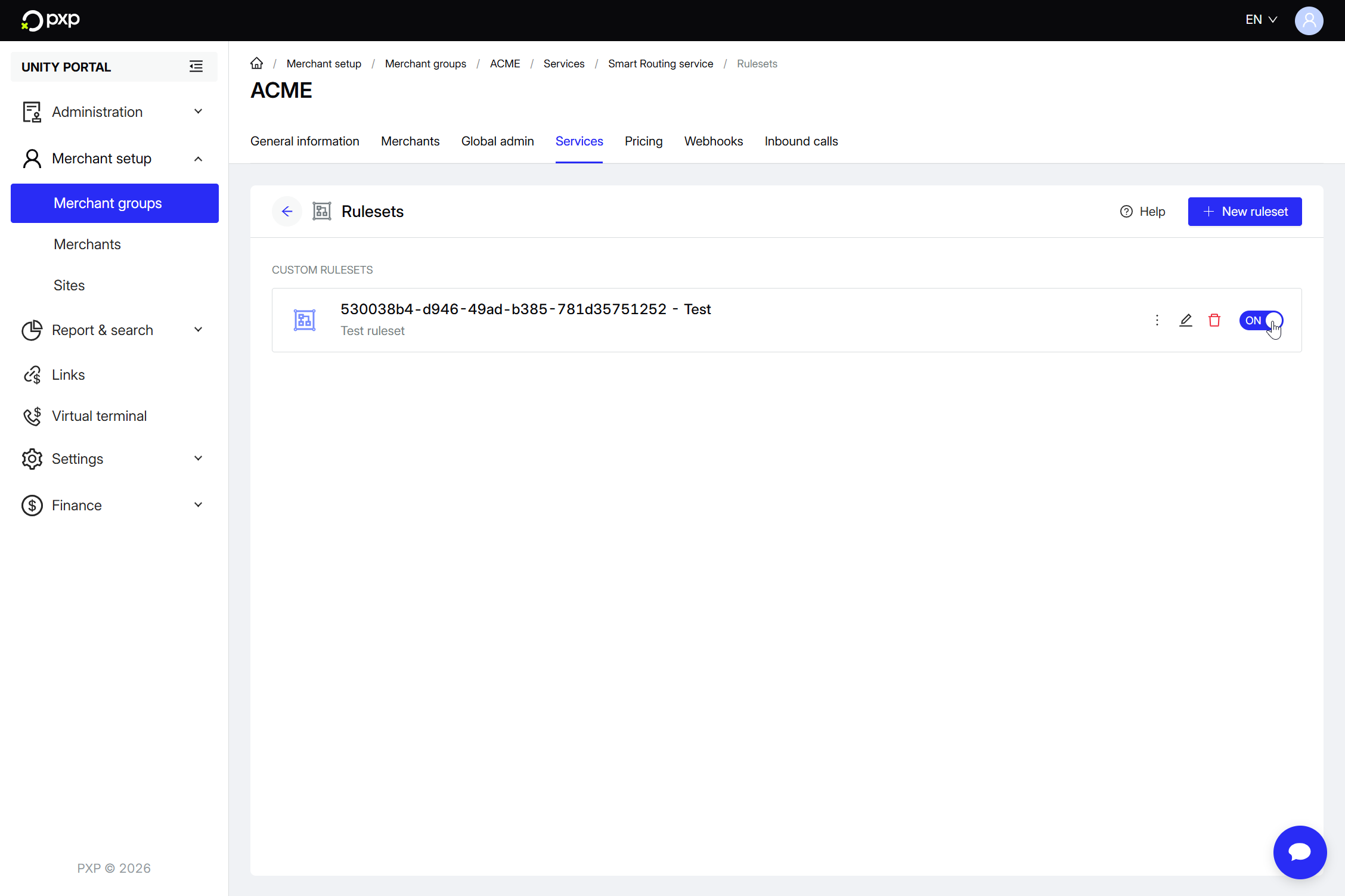
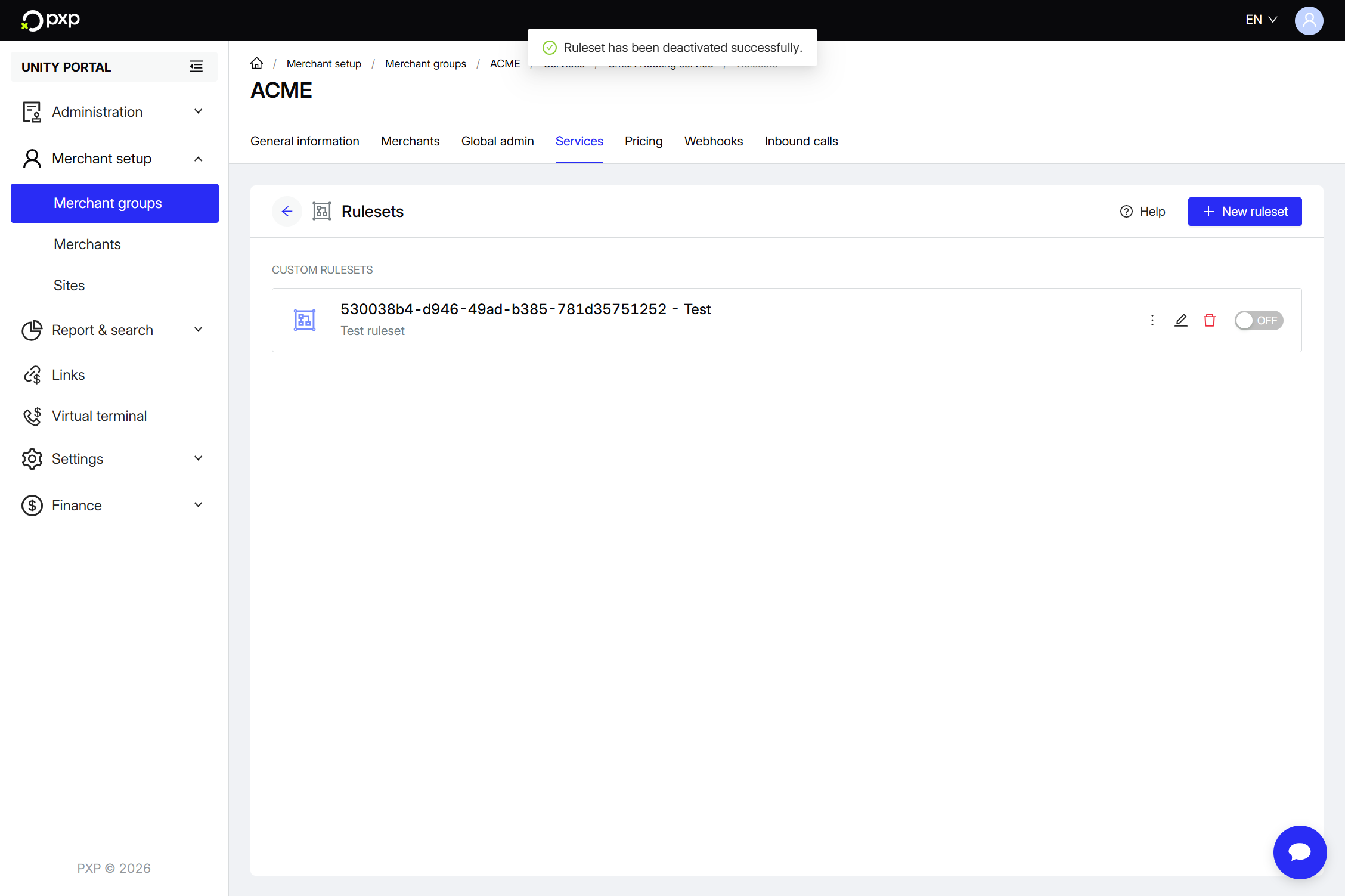
- The Disable ruleset modal opens. Enter a descriptive reason, then click Disable ruleset.Your ruleset's status is updated and a success message is displayed.
Edit a ruleset to update its name, status, or associated rules.
- In the Unity Portal, go to Merchant setup > Merchant groups.
- Select a merchant group.
- In the Services tab, click Edit next to Smart Routing service.
- Find the ruleset you want to edit, then click the pencil icon (
 ). You're taken to the ruleset's settings.
 - Make your desired changes. These are automatically saved.
When you're done, click the arrow in the top left to return to the Rulesets screen.
Delete a ruleset to permanently remove it and all its associated rules.
Deletion is permanent and can't be undone. If you're unsure, consider deactivating the ruleset instead.
- In the Unity Portal, go to Merchant setup > Merchant groups.
- Select a merchant group.
- In the Services tab, click Edit next to Smart Routing service.
- Find the ruleset you want to delete, then click the recycling bin icon (
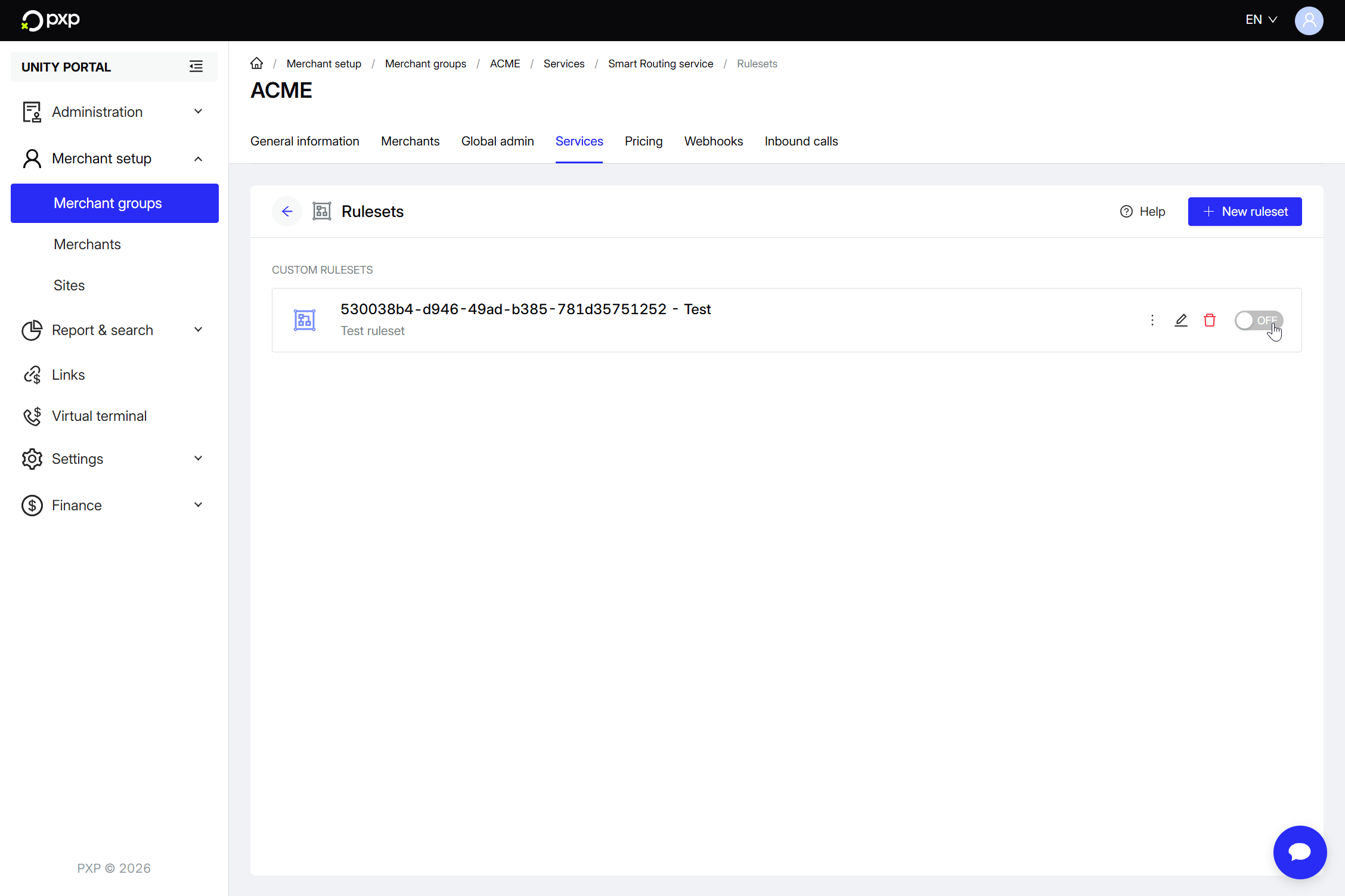
 ). A pop-up opens.
 - The Delete ruleset modal opens. Enter a reason for the deletion, then click Delete ruleset to confirm.Your ruleset and all its associated rules are deleted. The ruleset appears greyed and can no longer be used to route payments. You can however still access its change logs for auditing purposes.