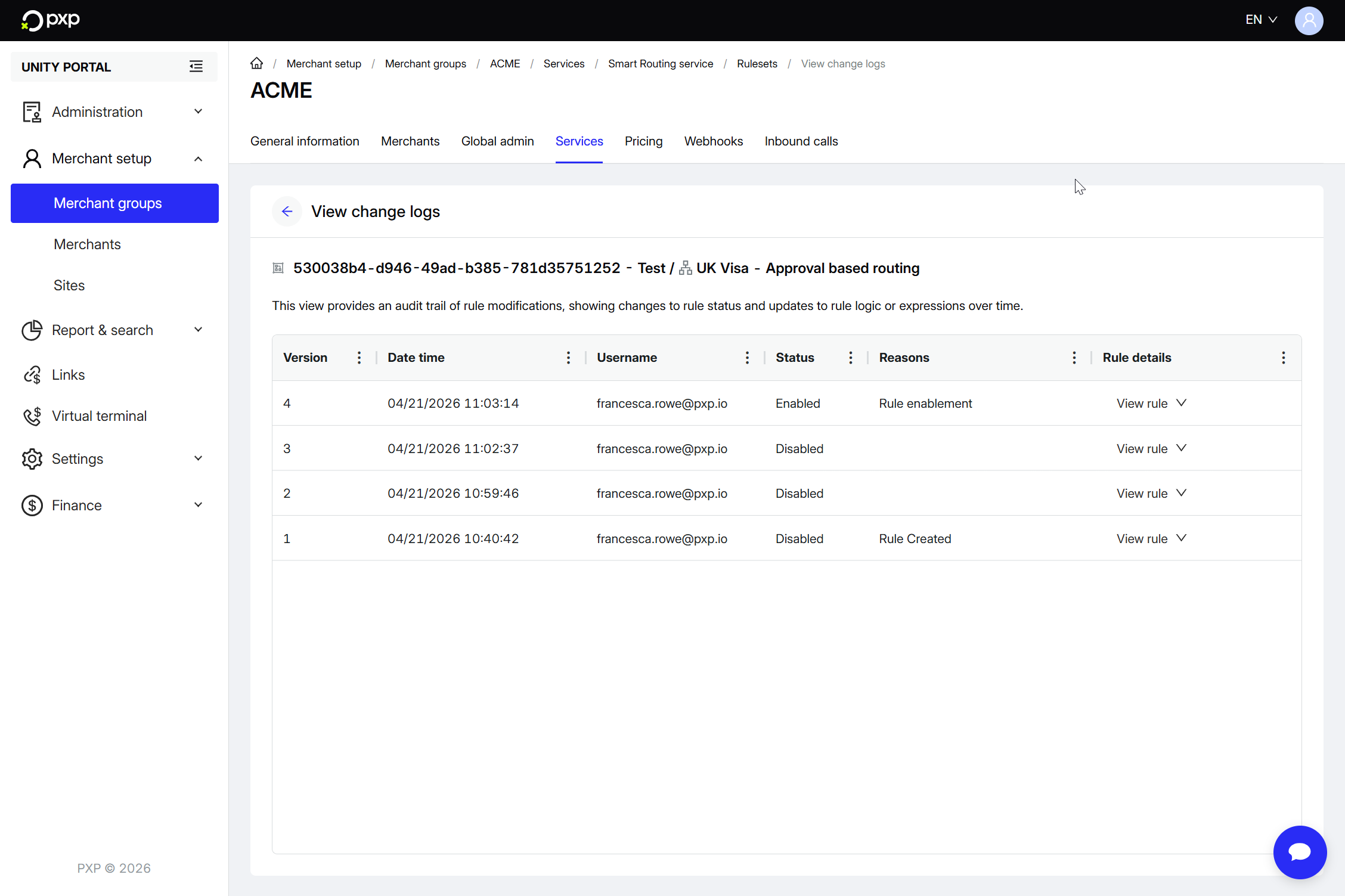
See what changes have been made to a rule or ruleset over time.
The Smart Routing dashboard offers an intuitive and visually clear interface to view and compare rule versions and updates to rule and ruleset statuses, so that you can track who made changes and understand why changes were made for audit and compliance purposes.
Use changelogs to audit changes, investigate unexpected routing behaviour, track compliance requirements, and understand the evolution of your routing strategies over time.
Each rule changelog entry includes the following information:
| Property | Description |
|---|---|
| Version number | A sequential integer identifier that uniquely represents each iteration of the rule |
| Date time | The date and time when the change was made in MM/DD/YYYY HH:MM:SS format |
| Username | The email address of the user who performed the action |
| Status | The status of the rule. Possible values:
|
| Reason | A free-text field capturing the rationale, explanation, or justification for the change made in this version |
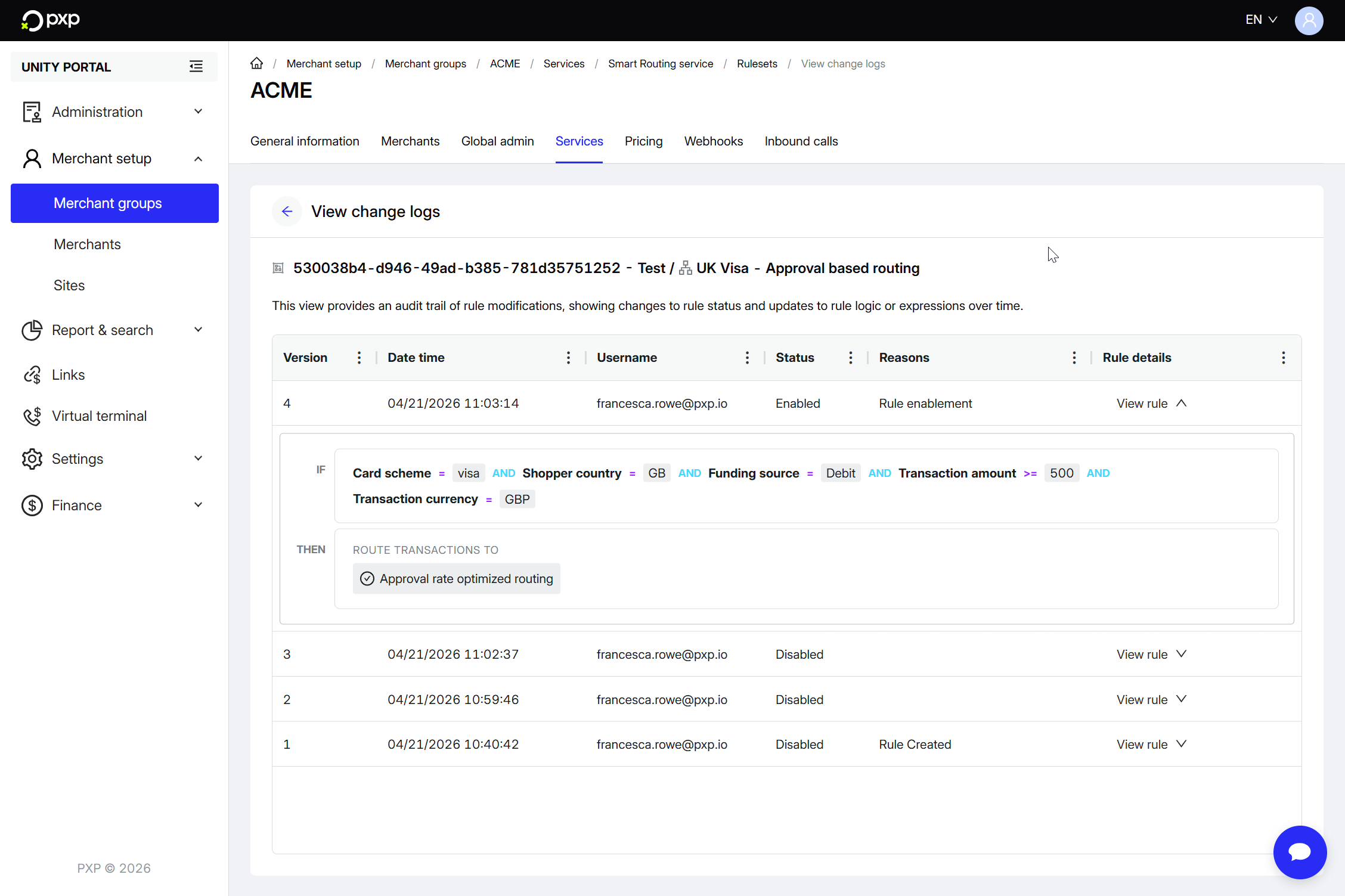
| Rule details | A snapshot of the complete rule expression. By default, the rule details are collapsed. You can click the down arrow to expand and view the complete rule details |
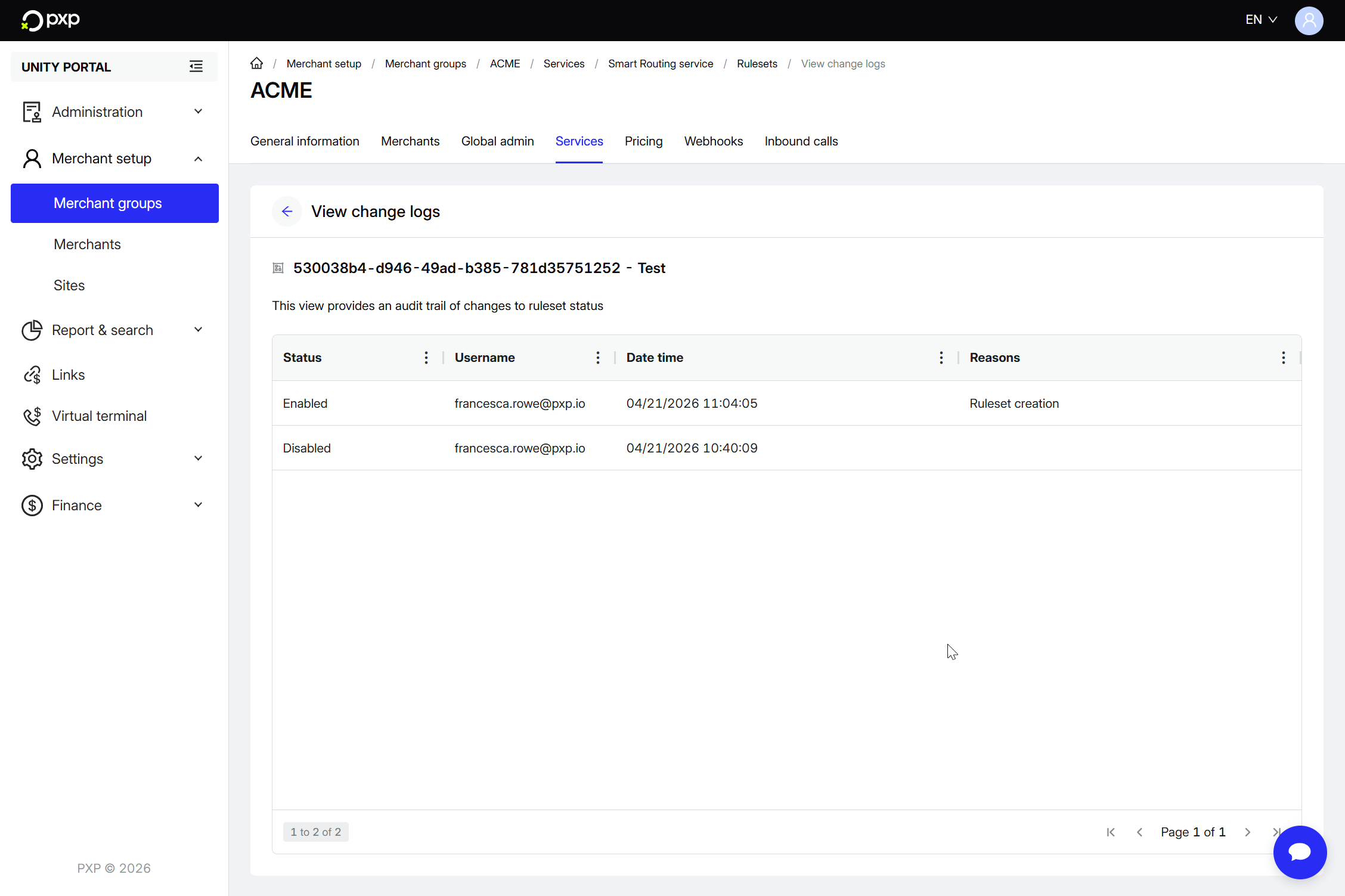
Each ruleset changelog entry includes the following information:
| Property | Description |
|---|---|
| Status | The status of the ruleset. Possible values:
|
| Username | The unique identifier or display name of the user who performed the action |
| Date time | The date and time when the change was made in MM/DD/YYYY HH:MM:SS format |
| Reason | The remark or note entered by the user to explain the change |
- In the Unity Portal, go to Merchant setup > Merchant groups.
- Select a merchant group.
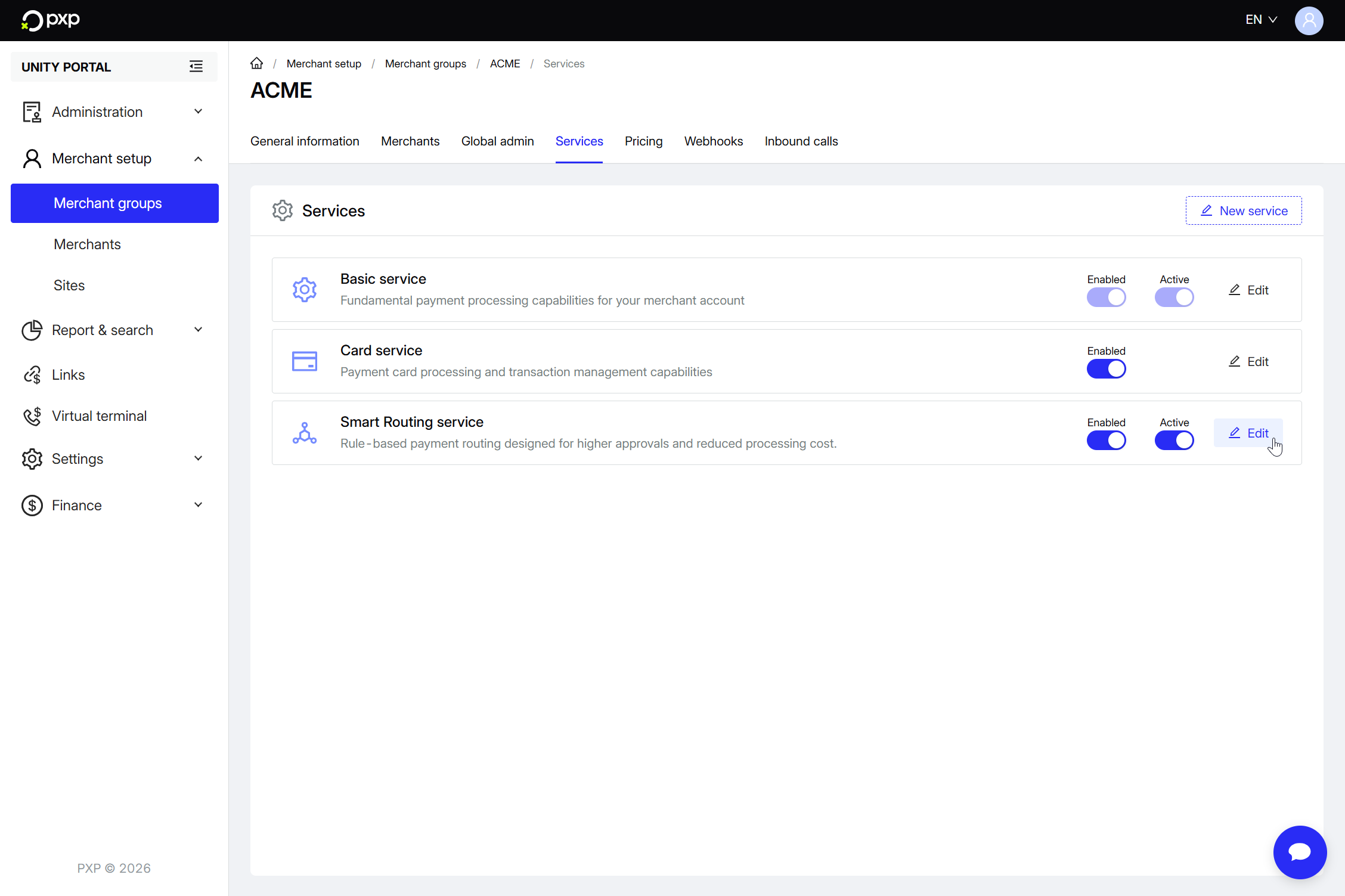
- In the Services tab, click Edit next to Smart Routing service.
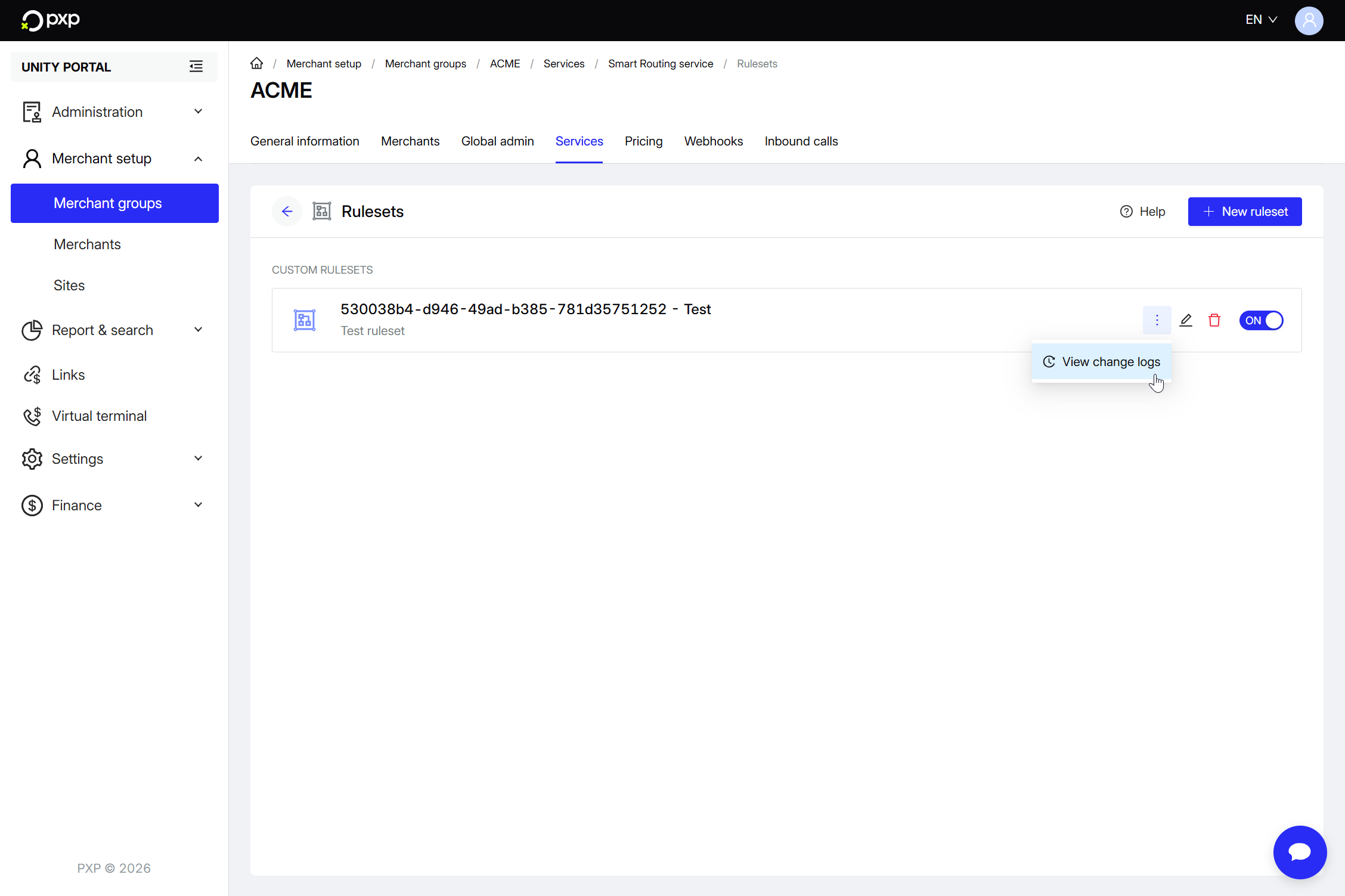
- Find the ruleset for which you want to view changes.
- Click on the three-dot menu icon (⋮), then select View change logs.The ruleset changelog is displayed, showing the most recent changes first.
- In the Unity Portal, go to Merchant setup > Merchant groups.
- Select a merchant group.
- In the Services tab, click Edit next to Smart Routing service.
- Find the ruleset that contains the rule for which you want to view changes.
- Click the pencil icon (). The ruleset details screen opens.
- Find the rule for which you want to view changes.
- Click the three-dot menu icon (⋮), then select View change logs.The rule changelog is displayed, showing the most recent changes first.
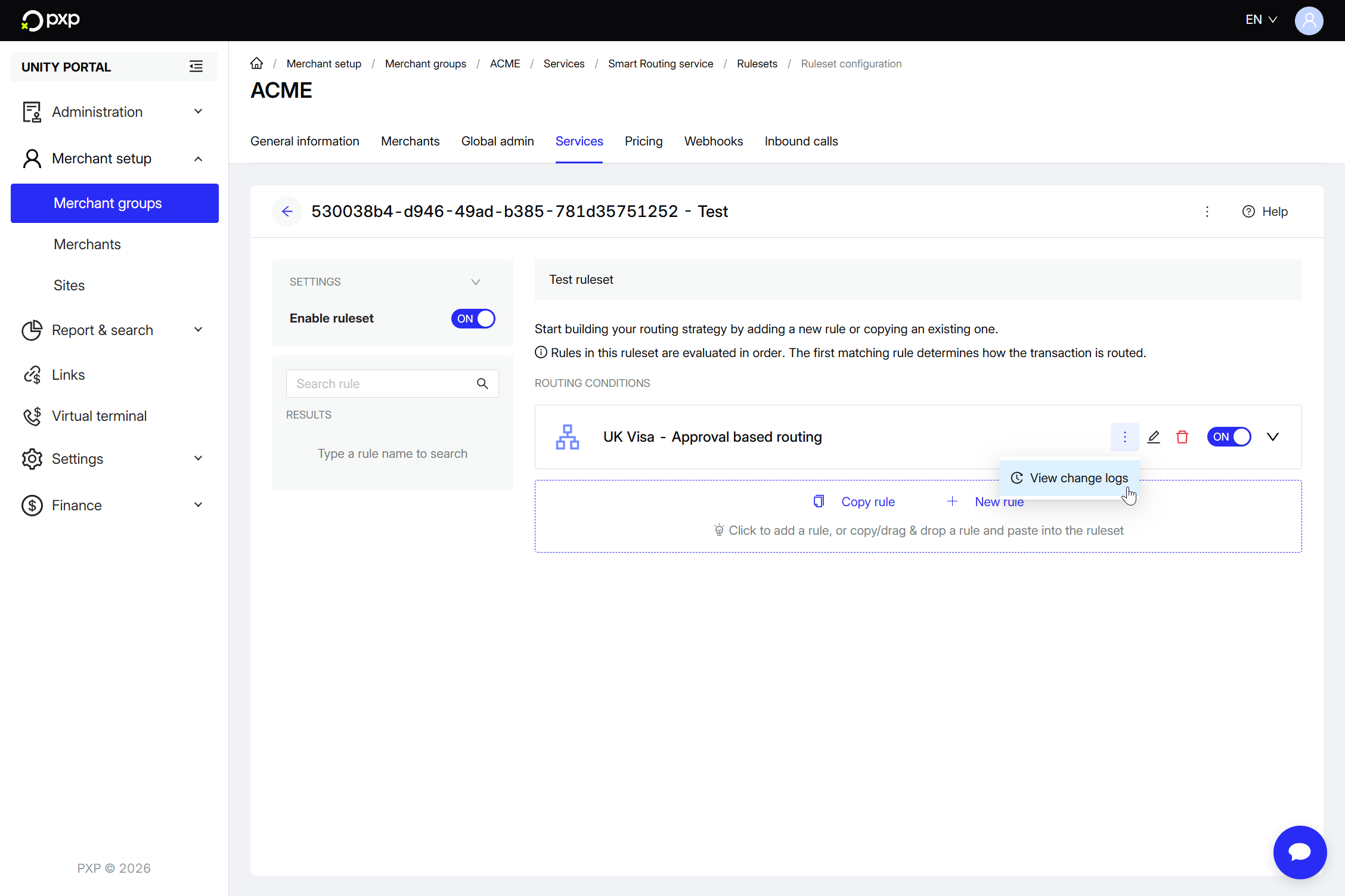 To see what the rule's configuration was like at a given point in time, click View rule in the Rule details column.