Register a new point-of-sale device and configure its settings.
To add a POS device in the Unity Portal:
- In the Unity Portal, go to Merchant setup > Sites.
- Select the site that you want to add a POS device to.
- Click the Services tab.
- In the Pos service row, click Edit.
- Click New POS.
- Choose your settings.
- Click Save to confirm.
Your device is added to the list of devices and its state is set to New. If this is the first device associated with this site, an HMAC key is also generated and displayed in the top left.
To activate a POS device:
- Set the device's status to Pending by clicking ... in the Actions column and selecting Pending.
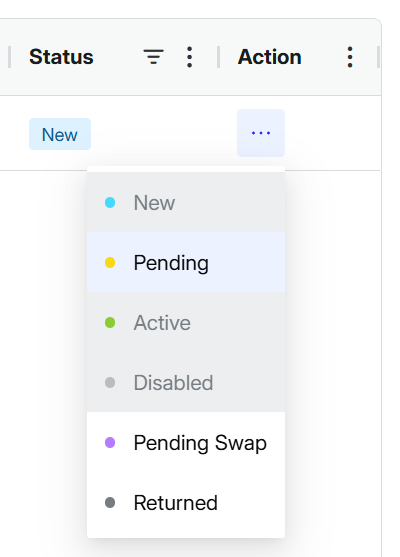
- Turn on the device and connect it to the Internet.
- Open the POS+ app. Your device then sends its serial number to the POS Service, which returns an HMAC used to authenticate it. The device's state changes to Active.
- The device automatically downloads the settings that were configured in the Unity Portal.
Your device is now ready to use.