Configure your devices to require a PIN for refunds, or set up refund limits.
By default, anyone who has access to a POS device can use it to perform a refund. To limit any risk of fraud or misuse, you can set up a six-digit PIN that will be required to reach the refund screen. The PIN is set at the site level for all POS devices associated with that site. However, you can override it at the device level if necessary.
To set up PIN restriction for a site:
- In the Unity Portal, go to Merchant setup > Sites.
- Select a site.
- In the Services tab, find the Pos service and click Edit.
- In the top right, click Refund PIN settings.
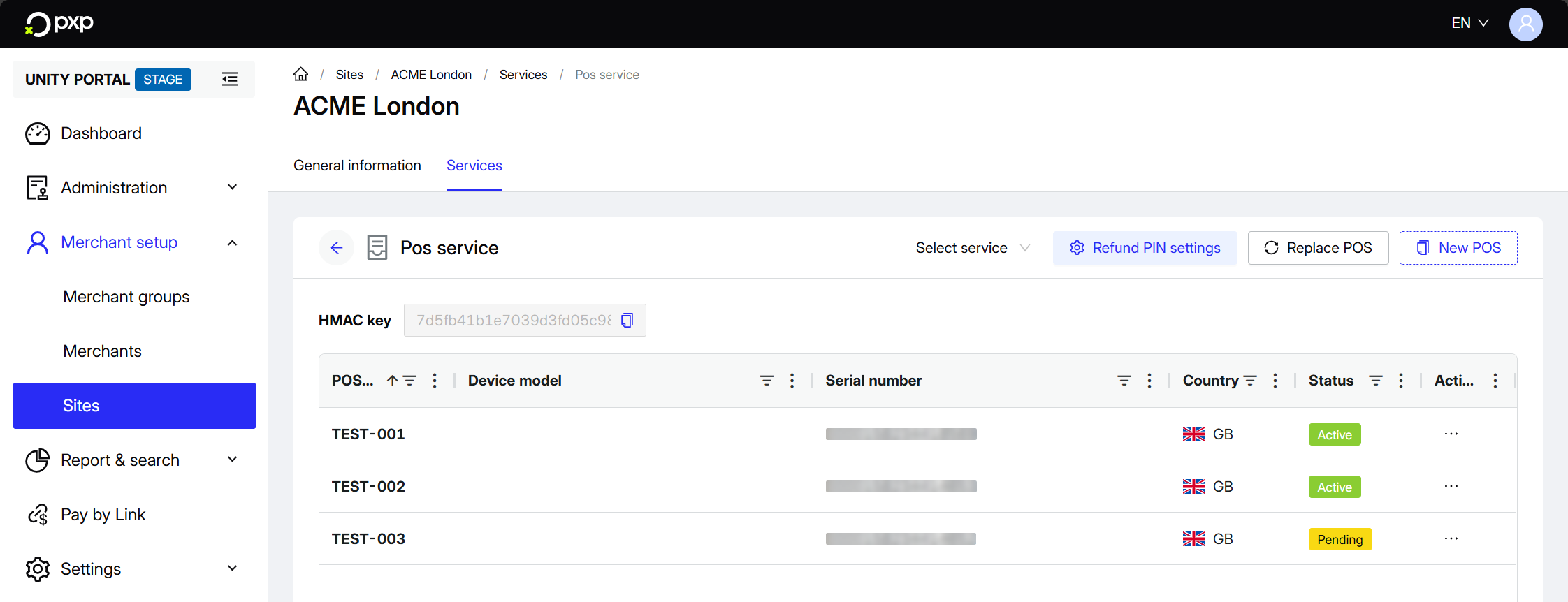
- A modal opens. Switch the toggle on to enable PIN restriction.
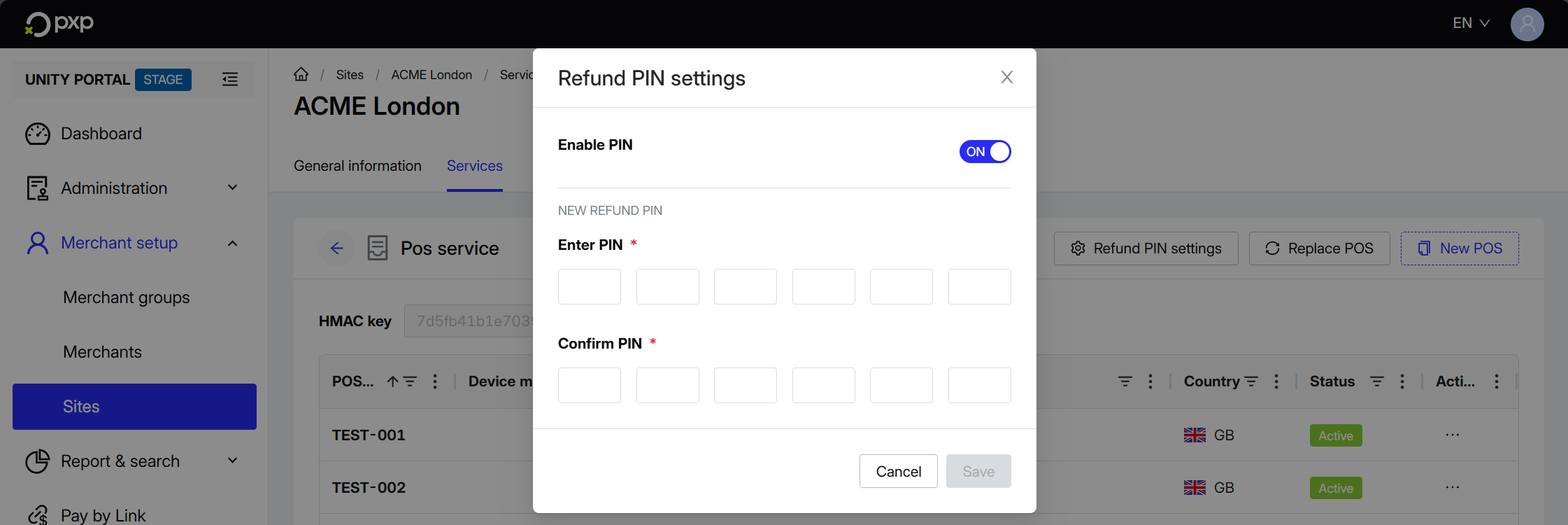
- Enter a PIN, then enter it again to confirm. Note that you can't use the same digit six times (e.g.,
111111) or use any ascending/descending sequences (e.g,123456).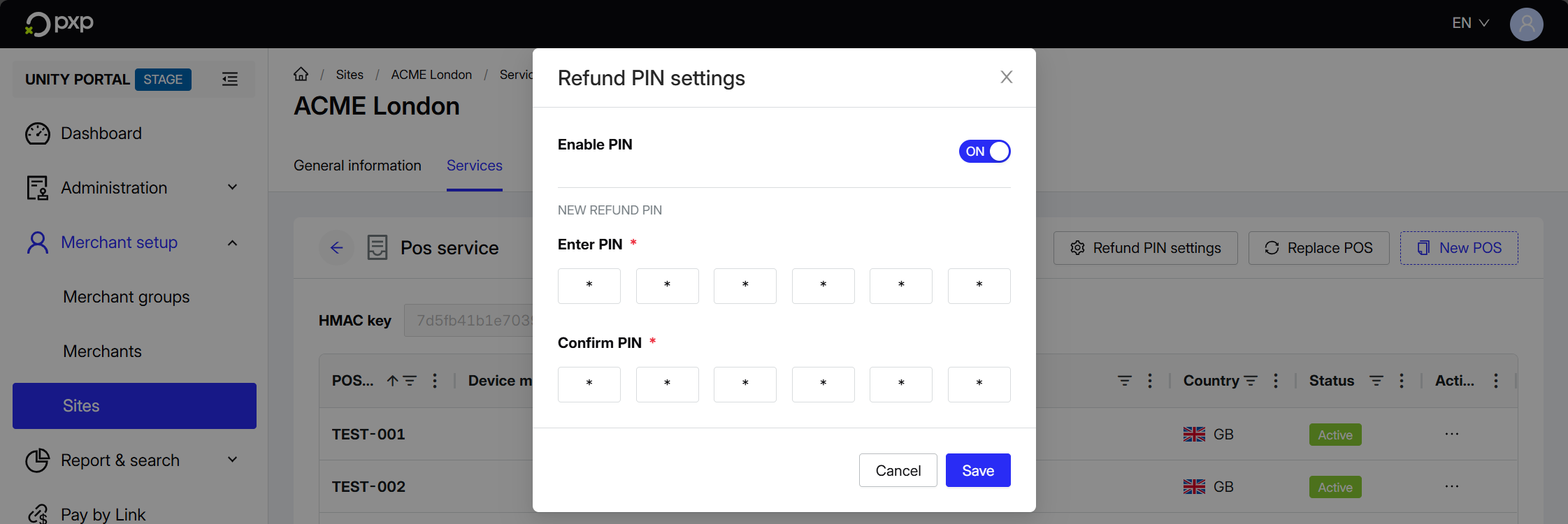
- Click Save. A success message is displayed at the top of your screen.
Your refund PIN is now set and applies to all devices associated with this site. Make sure to securely share this PIN with anyone who may need it.
To override the PIN restriction for a specific device:
- In the Unity Portal, go to Merchant setup > Sites.
- Select the site that the device is associated with.
- In the Services tab, find the Pos service and click Edit.
- Click on the device that you want to override the restriction for.
- Click Feature settings.
- Under Terminal capabilities, switch the Refund PIN toggle off.
- Click Save in the top right to apply your changes.
This device no longer requires a PIN to perform refunds.
To disable a PIN restriction for a site:
- In the Unity Portal, go to Merchant setup > Sites.
- Select the site for which you want to disable the PIN restriction.
- In the Services tab, find the Pos service and click Edit.
- In the top right, click Refund PIN settings. A modal opens.
- Switch the toggle off.
- Click Save. A confirmation message is displayed at the top of your screen.
Your refund PIN is now disabled and refunds can be performed without a PIN on all devices associated with this site.
To update an existing PIN:
- In the Unity Portal, go to Merchant setup > Sites.
- Select the site for which you want to update the PIN.
- In the Services tab, find the Pos service and click Edit.
- In the top right, click Refund PIN settings. A modal opens.
- Enter your new PIN, then enter it again to confirm. Note that you can't use the same digit six times (e.g.,
111111) or use any ascending/descending sequences (e.g.,123456). - Click Save. A confirmation message is displayed at the top of your screen.
Your refund PIN is now successfully updated and applies to all devices associated with this site. Make sure to securely share this PIN with anyone who may need it.
You can set up a refund limit, so that only refunds up to a certain amount are permitted. The limit is set at the device level.
To set up a new refund limit:
- In the Unity Portal, go to Merchant setup > Sites.
- Select the site associated with the device for which you want to set up a refund limit.
- In the Services tab, find the Pos service and click Edit.
- Click on the device.
- Click Feature settings.
- Under General, switch the Refund limit toggle on and choose a limit amount.
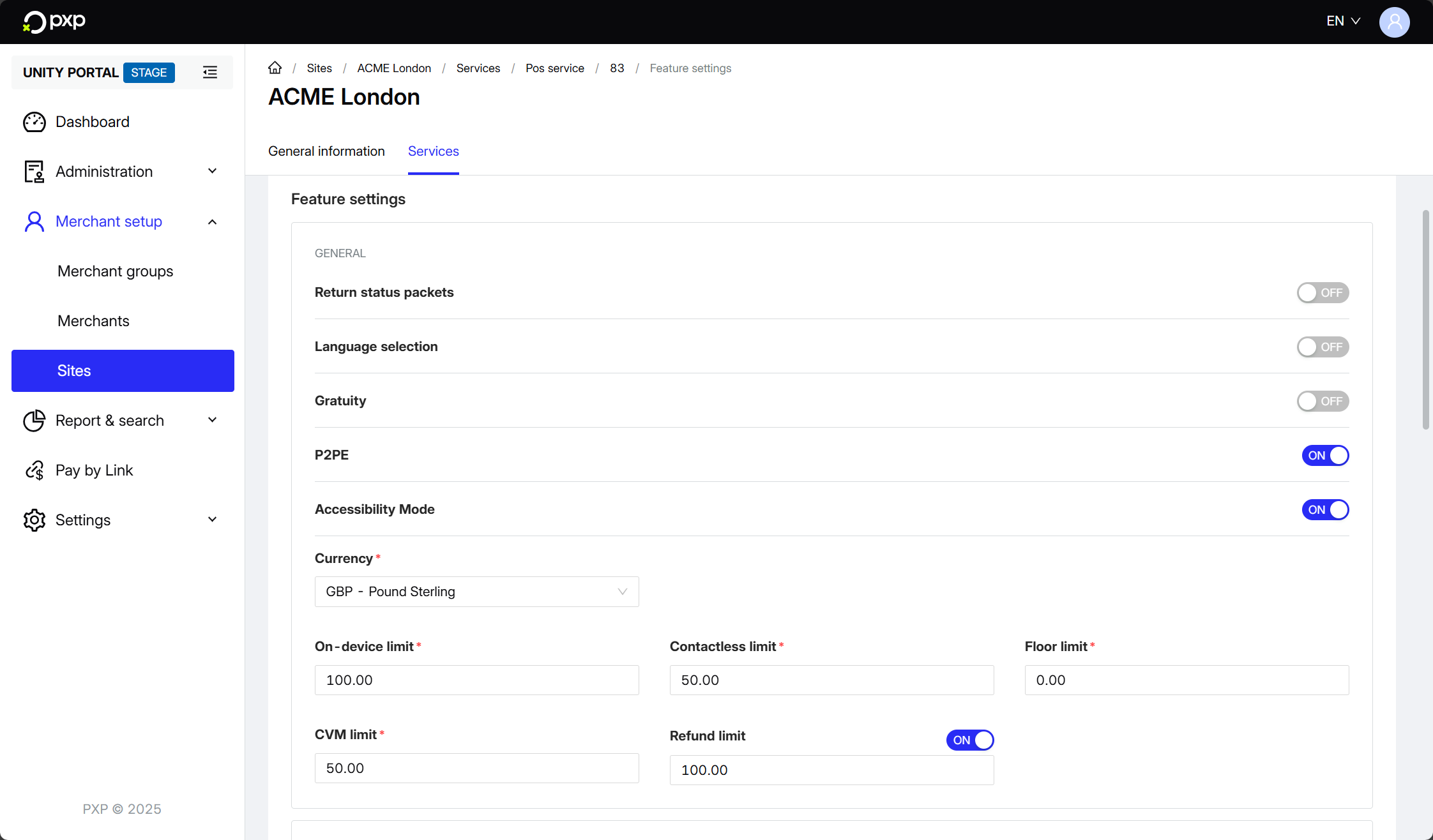
- Click Save in the top right to apply your changes.
Your limit is now set up for this device.
To update or disable an existing refund limit:
- In the Unity Portal, go to Merchant setup > Sites.
- Select the site associated with the device for which you want to manage the refund limit.
- In the Services tab, find the Pos service and click Edit.
- Click on the device that you want to override the limit for.
- Click Feature settings.
- Under General, switch the Refund limit toggle off or change the limit amount.
- Click Save in the top right to apply your changes.
This device's refund limit settings are updated.