Update your device configuration or download the latest app version.
To download your device's settings from the Unity Portal:
- On the home screen, tap the icon in the top left to open the menu.
- In the menu, tap Update App.
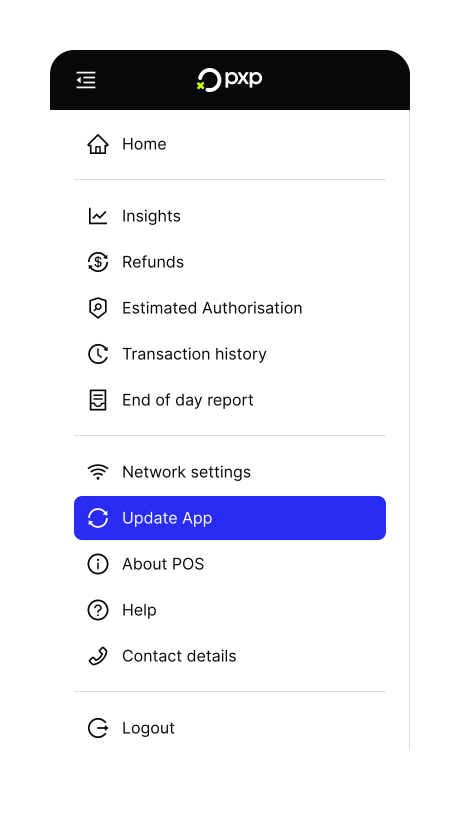
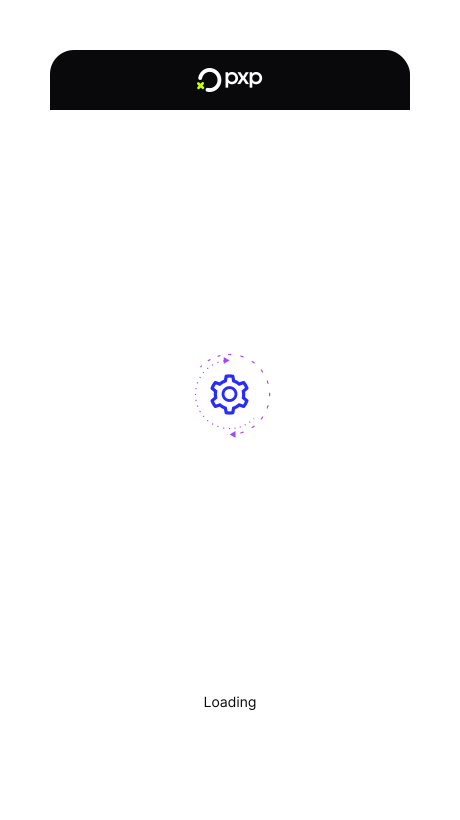
- Tap Update settings. Your device starts loading the latest configuration from the Unity Portal.
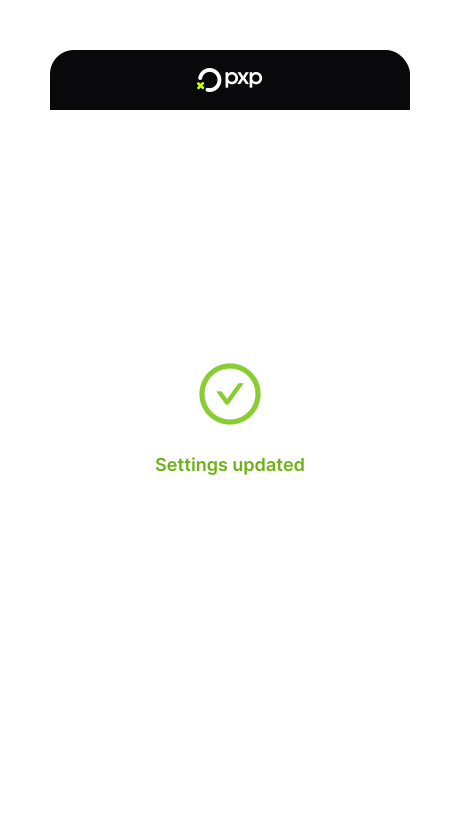
Once the settings are downloaded, you'll see a success message.
When performing an update, the device will automatically reboot and payment processing will be unavailable for a short time. We strongly recommend performing this action outside of your business hours.
To install the latest version of the POS app:
- On the home screen, tap the icon in the top left to open the menu.
- In the menu, tap Update App.
- Tap Update App. A warning message is displayed.
- Proceed to continue.
- If a new version is detected, the download starts automatically.
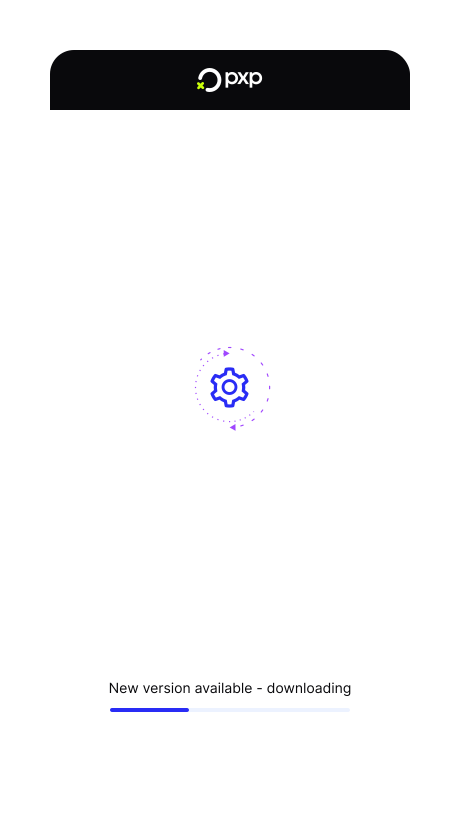
Once the download is complete, the device automatically reboots itself. You'll need to re-open the POS app to resume taking payments.