Monitor your settlement activity and financial status in real time.
The My finances dashboard provides you with comprehensive visibility into your settlement activity, accruals, and payment history. Accessible from the Unity Portal, this dedicated financial hub enables you to track funds in real time, understand when payments will arrive, and access all settlement-related reports and invoices.
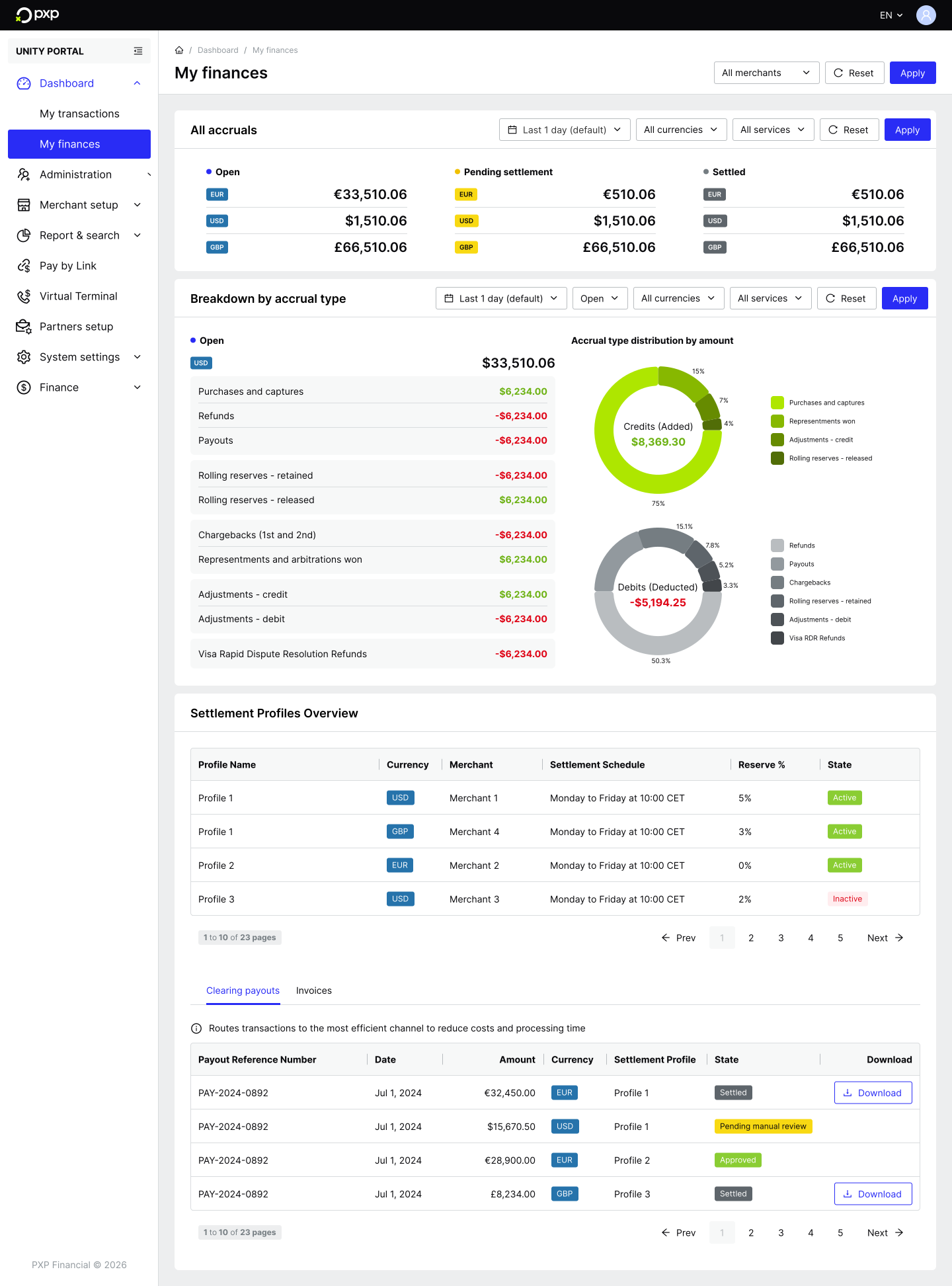
Users with the following roles can access the My finances dashboard:
- Global Admin: Has full visibility across all merchant groups and sites.
- Reports Reader: Has view-only access to the dashboard and reports.
The data displayed automatically reflects your access scope, showing only the merchant groups, merchants, and sites you have permission to view.
By default, all data displayed is from the last 24 hours. You can change the date range across the entire dashboard or at the widget level using the drop-down. Your change will be applied automatically and the page data will be refreshed.
The possible date ranges are:
- Last 1 day
- Last 7 days
- Last 30 days
By default, the data displayed is a combined total across all merchant accounts and sites that you have access to. You can filter data by merchant or site across the entire dashboard by using the filter drop-down in the top right and clicking Apply. The page will reload with the updated data.
Widgets also support additional filtering by accrual state (breakdown widget only), currency, and service.
The All accruals widget displays all open, pending settlement, and settled accruals across all currencies and settlement profiles.
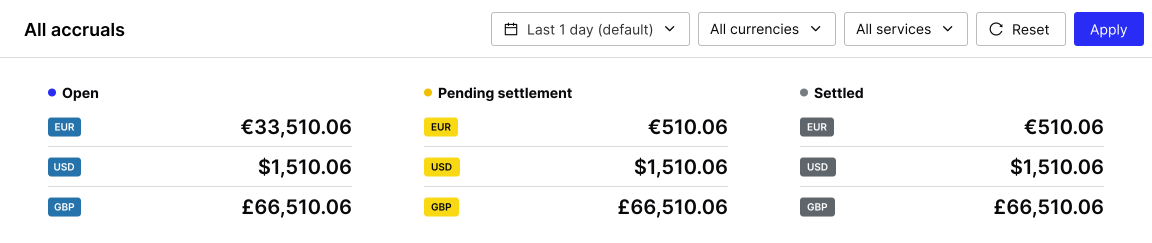
Accruals update in real time as transactions are processed throughout the day. The balance shown includes all transactions up to the current moment.
The Breakdown by accrual type widget provides detailed insight into the composition of your current accruals.
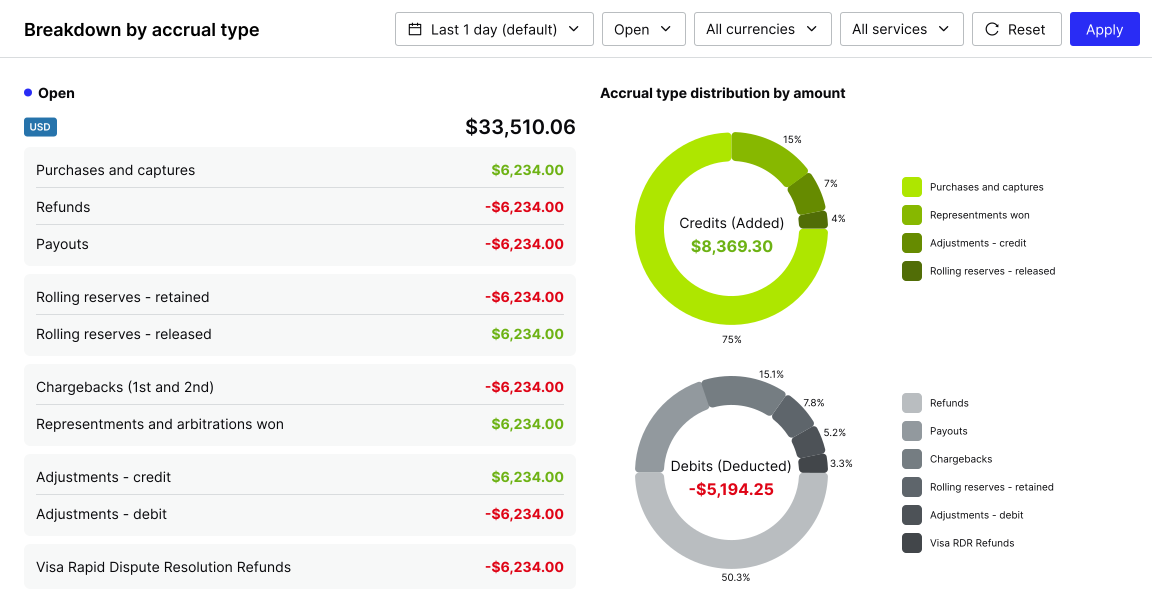
Each accrual type shows the total accrued balance on the left, and the proportion of your total accrued balance on the right.
The widget tracks the following credits, which increase your settlement:
| Accrual type | Description |
|---|---|
| Captures | Purchases and captured authorisations |
| Representments | Reversed chargebacks that were won |
| Arbitrations won | Successfully disputed second chargebacks |
| Adjustment credits | Manual credits applied by PXP |
| Rolling reserves released | Previously retained funds now available |
The widget tracks the following debits, which decrease your settlement:
| Accrual type | Description |
|---|---|
| Refunds | Customer refunds processed |
| Payouts | Outbound payments made |
| Chargebacks | Disputed transactions charged back to you |
| Second chargebacks | Lost representment disputes |
| Visa RDR refunds | Automatic refunds through Visa's Rapid Dispute Resolution |
| Gateway fees | Processing fees for the Card service |
| Blended card rate fees | Transaction-based service charges |
| Rolling reserves retained | Funds held for future risk coverage |
| Adjustment debits | Manual debits applied by PXP |
The Settlement profiles overview section provides a summary of your settlement configuration and timeline expectations. This helps you understand when your accrued funds will be paid out based on your settlement cycle and model.
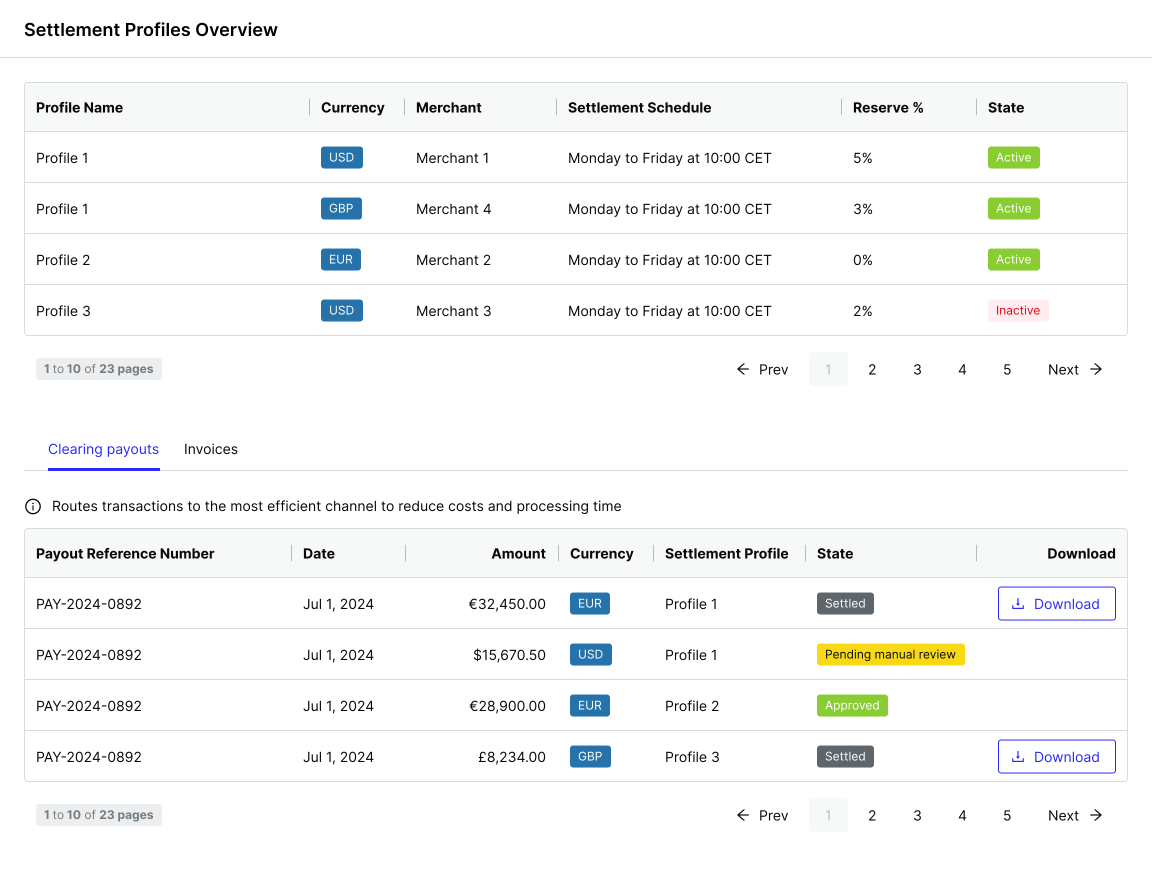
For each settlement profile, the widget displays:
- Profile name: The identifier for your settlement configuration
- Currency: The currency in which you'll receive funds
- Merchant name: The name of the merchant account associated with the settlement profile
- Settlement schedule: The date on which your next payout is expected
- Reserve %: The proportion of the settlement that will go towards your rolling reserves
- State: The current state of the settlement profile
The Clearing payouts section provides a complete history of all payments sent to your bank account, enabling you to reconcile received funds against PXP records.
For each clearing payout, the table shows:
- Payout reference number: The unique identifier matching your bank remittance
- Date: The date on which funds were sent to your bank account
- Amount: The value paid out in the settlement currency
- Currency: The currency of the payout
- Settlement profile: The identifier for your settlement configuration
- State: The current state of the payout
Additionally, for every settlement with the settled state, a download button is displayed.
Use the reference number from your clearing payout to match it against incoming payments in your bank statement. This number is included in the remittance information.
A status of Settled means funds have been sent from PXP's clearing account to your bank. Depending on your bank and the payment channel used, funds typically arrive in your account within a few hours, though same-day delivery is not guaranteed.
The Invoices section provides access to all settlement invoices generated for your business. An invoice is created for each settlement cycle (daily, weekly, or monthly) and contains a comprehensive breakdown of all transactions, fees, and adjustments for that period.
For each invoice, the table shows:
- Invoice number: The unique identifier for the invoice
- Issue date: The date on which the invoice was generated
- Settlement period: The date range covered by the invoice
- Amount: The net settlement amount for the period
- Currency: The settlement currency
- Download: Buttons to download a summary of the invoice in PDF format or a detailed line-item report in CSV format
For more information about what each report type contains and to learn how to receive these by email or webhook, see our Reports guide.