Control how and when your funds are settled.
Settlement profiles are the foundation of your settlement configuration. They define when your business day ends, which sites share the same settlement schedule, and how funds are routed to your bank accounts.
Think of a settlement profile as a set of rules that tells PXP:
- When to calculate your daily balance (cutoff time).
- Which sites or merchants use these rules (entity coverage).
- Where to send your funds (bank account routing).
Most merchants need just one settlement profile, but you can create multiple profiles if different parts of your business require separate settlement schedules or bank accounts.
Every site must be assigned to exactly one settlement profile before you can activate the Card service.
The cutoff time defines when your business day ends. Once the cutoff time is reached, the accrual process ends and the calculation of your daily balance starts.
- Transactions accumulate throughout the day until the cutoff time.
- At cutoff, the system stops accepting new transactions into that day's accrual and the accrual process ends.
- Calculation begins for the merchant daily balance.
- Settlement triggers fire based on your cycle (daily, weekly, or monthly).
The default cutoff is midnight (12:00 AM GMT), but you can adjust it by hour increments:
- Before midnight: -5 hours, -4 hours, -3 hours, -2 hours, -1 hour
- After midnight: +1 hour, +2 hours, +3 hours, +4 hours, +5 hours
If your business spans multiple locations in different time zones, set the cutoff to UTC to ensure consistency.
Entity coverage determines which sites share the same settlement profile. Entities within the same profile share the same accrual (like buckets). The highest entity level is the merchant.
You can configure a settlement profile to cover:
- All sites within your merchant account (single-profile setup)
- One or more specific sites (multi-profile setup)
The following configuration rules apply:
- Every site must be included in exactly one settlement profile, even if the site isn't active.
- One site can only belong to one settlement profile. Overlaps between profiles are not allowed.
- Sites can be moved between profiles. This creates a new version of both profiles.
- New sites must be added manually. They won't be auto-assigned to any profile.
Settlement profiles can't be saved if any site is missing from a profile or if a site appears in multiple profiles. Ensure all sites are assigned to exactly one profile before saving.
Settlement routing controls how different transaction currencies are converted and directed to your bank accounts. Default routing applies to all transactions unless you create exception rules. It prioritises like-for-like settlement, with GBP transactions being routed to a GBP bank account, EUR transactions to an EUR bank account, and so on - with no currency conversion.
When settlement is first enabled for your merchant account, PXP automatically creates a default settlement profile with these settings:
| Setting | Description |
|---|---|
| All sites selected | Every site under your merchant account uses this profile. |
| Cutoff time | Midnight (12:00 AM GMT). |
| Default routing | Transactions are settled "like for like" when a matching bank account exists (transactions in GBP settle to a GBP bank account, transactions in EUR settle to an EUR bank account, etc.). Transactions with currencies that don't have a matching bank account settle into the bank account with your merchant's official country currency. Note that currently only GBP is supported as a settlement currency. |
| Settlement currency | Matches the bank account currency. |
You can edit this default profile at any time to match your business needs.
When you create new sites after initial configuration, you'll need to add them manually to a settlement profile. Otherwise, you won't be able to activate the Card service for those sites.
Changing a settlement profile creates a new version. You can't revert to the old version, but the old configuration is preserved for any in-progress accruals.
To edit an existing settlement profile:
- In the Unity Portal, go to Merchant setup > Merchants.
- Select a merchant.
- In the Settlement tab, click Settlement profiles.
- Select a settlement profile from the list on the left side of your screen.
- Update your settlement profile information and/or frequency.
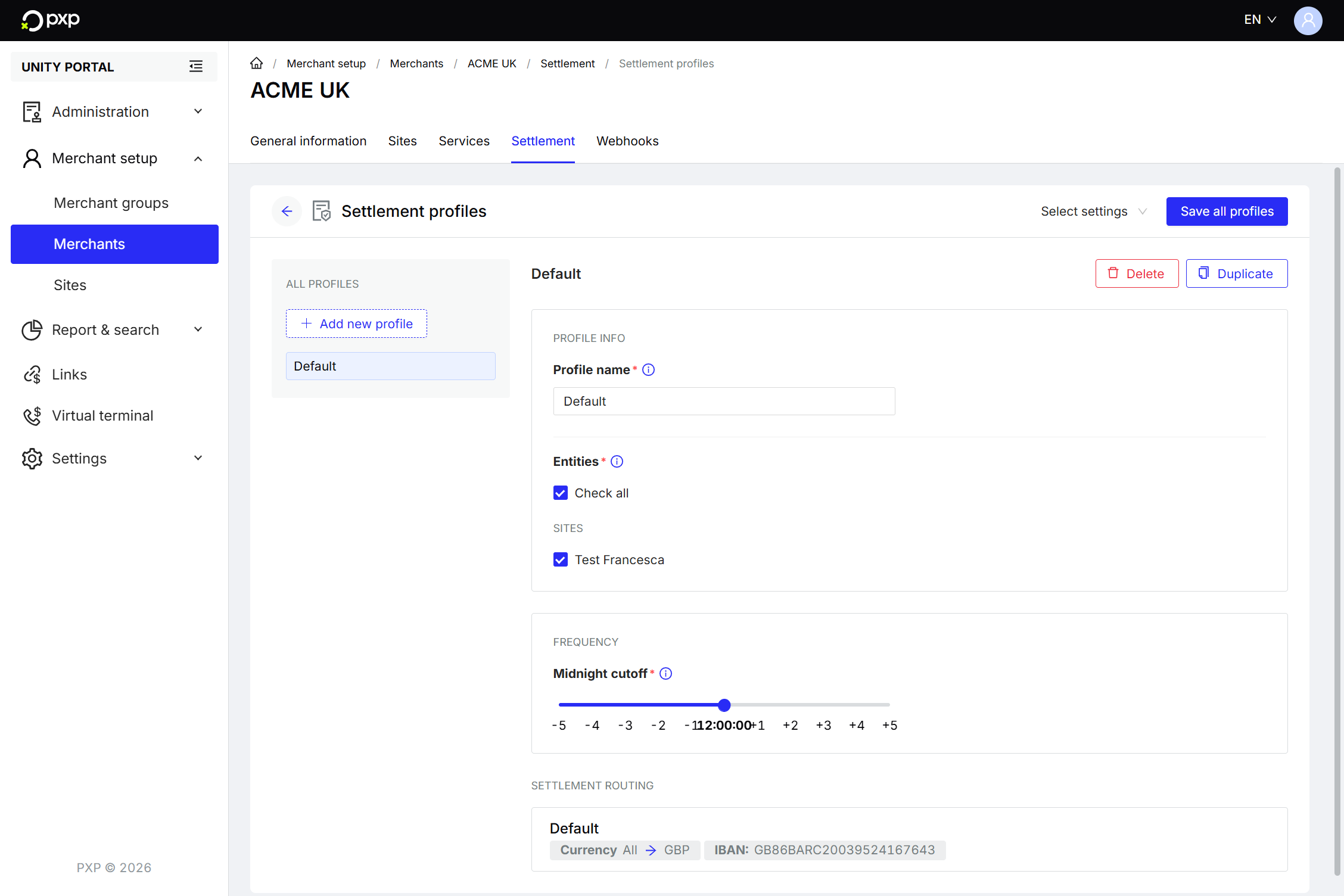
- Click Save all profiles in the top right.
You might need multiple settlement profiles if different sites need different cutoff times or you want separate bank accounts for different business units.
To create a new settlement profile:
- In the Unity Portal, go to Merchant setup > Merchants.
- Select a merchant.
- In the Settlement tab, click Settlement profiles. The list of existing settlement profiles is displayed on the left of your screen.
- Click + Add profile.
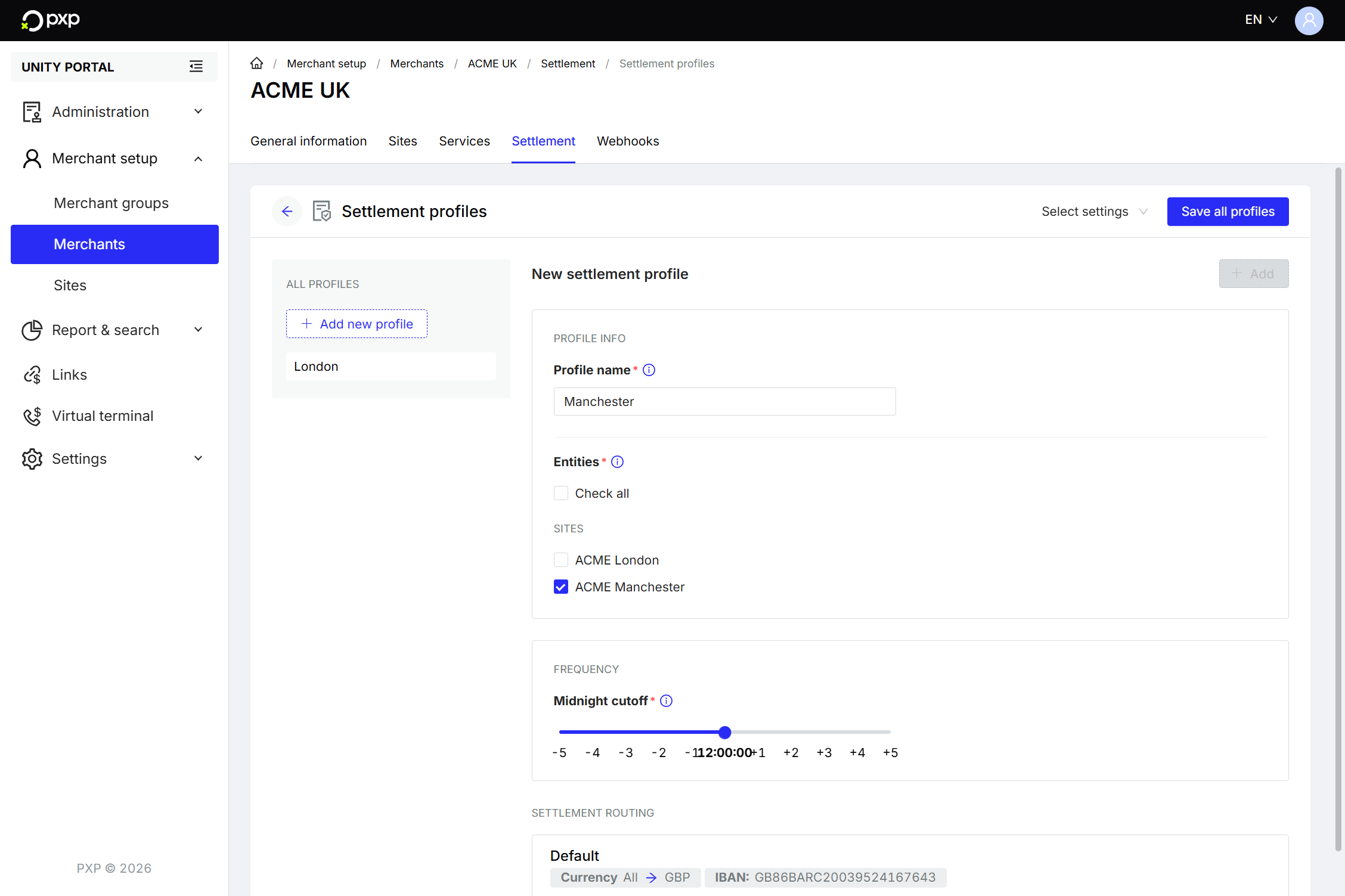
- Complete the Profile info section:
- Enter a descriptive profile name.
- Choose which entities to assign to this profile.
- Optionally, set the timezone offset for the midnight cutoff by moving the slider left or right.
- Click + Add in the top right. Your new settlement profile is created, but not saved yet. You can still make additional changes to this profile.
- When ready, click Save all profiles in the top right.
Your new settlement profile is saved and applied to your chosen entities.
To permanently delete a settlement profile:
- In the Unity Portal, go to Merchant setup > Merchants.
- Select a merchant.
- In the Settlement tab, click Settlement profiles.
- Select a settlement profile from the list on the left side of your screen.
- Click Delete. A confirmation modal opens.
- Click Yes, delete to confirm.
A success message is displayed at the top of your screen and the list of settlement profiles is updated.