Process MOTO transactions for new and returning customers.
The Virtual Terminal provides an intuitive two-section interface for processing Mail Order/Telephone Order (MOTO) transactions. The left section handles customer and order information, while the right section manages payment details. This guide walks you through each field and explains how to efficiently populate transaction information.
To start processing transactions:
- In to the Unity Portal, go to Virtual Terminal.
- If you have access to multiple sites, use the selector in the top-right to choose one.
You'll see the Virtual Terminal interface with the Order info form on the left and the Payment section on the right.
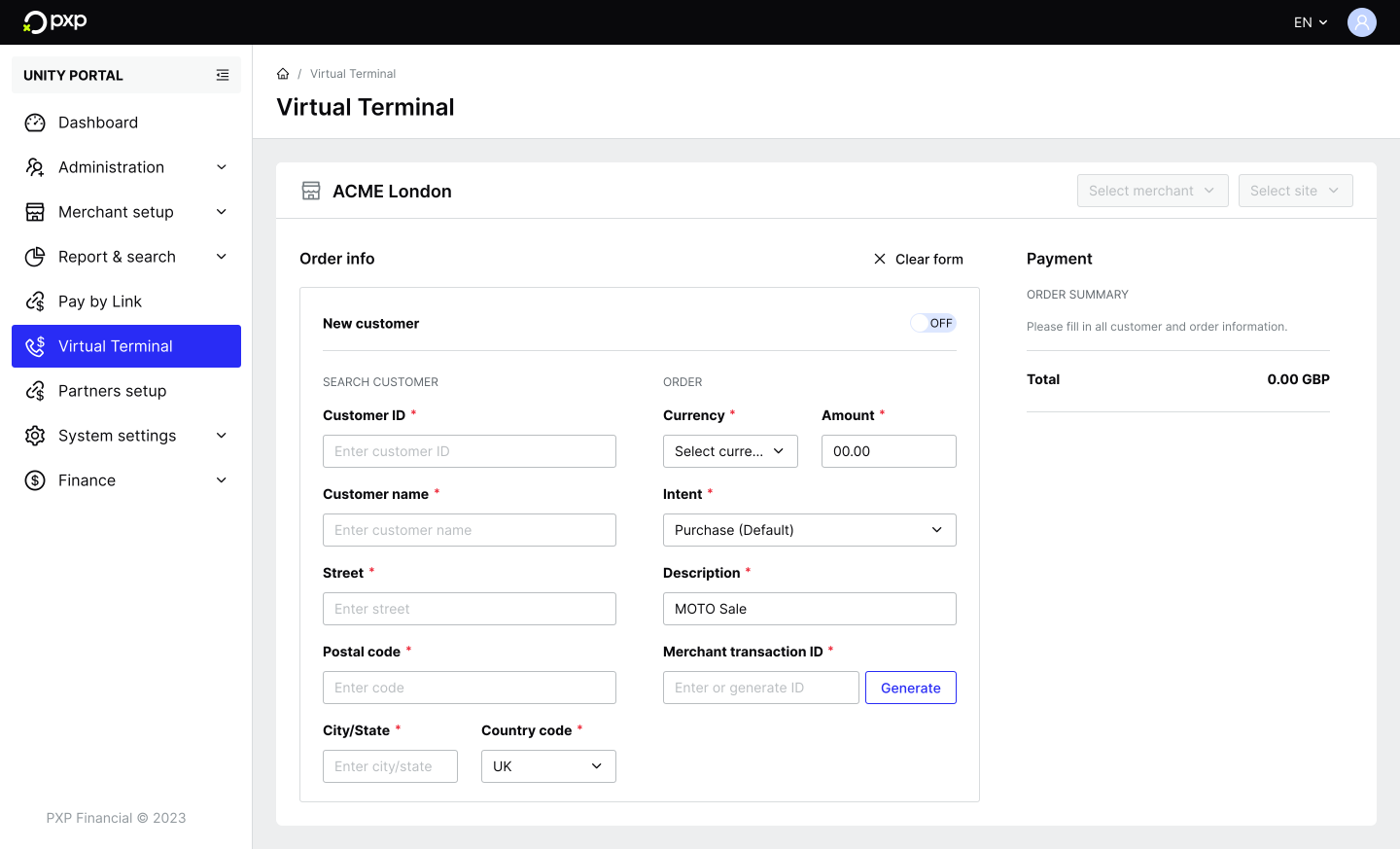
- Enter the Customer ID:
- For existing customers, start typing the customer's ID and select it from the search results. THeir customer details are automatically populated. You'll also see a Last transaction field in the bottom left, which displays the amount, currency, date, and time of their most recent transaction.
- For new customers, switch the New customer toggle on. The customer ID field is automatically populated, but you can manually enter a custom ID if your business uses specific customer numbering.
- Complete or edit the customer's information if it needs updating:
- Customer name: The customer's full name as it appears on their billing information.
- Street: The customer's billing street address. Include any apartment or unit numbers if applicable.
- Postal code: The customer's billing postal code or ZIP code.
- City/State: The customer's city and state or province.
- Country code: The customer's country. This field uses ISO country codes for international address support.
If AVS is enabled for your site, ensure that the billing address information matches the customer's card issuer records to avoid verification failures.
- Enter the Amount using decimal notation.
- Select the Currency from the drop-down menu. Only currencies supported by your site configuration appear in the list.
- Select the transaction Intent from the drop-down. This defaults to Purchase for immediate payment capture. Choose Authorisation or Estimated authorisation to reserve funds for manual capture later.
- Optionally, edit the Description field. This field pre-populates with the default description set for your site, but you can modify it for specific orders. Make sure to use clear, recognisable descriptions for easier transaction reference.
- Enter or generate a Merchant transaction Id field. This is used to track the transaction in the Unity Portal's reporting system.
Before selecting a payment method, verify the order summary displays:
- The customer's name and billing address.
- The total transaction amount with the correct currency.
You have two options for payment: you can use a saved card or enter new card details.
If the customer has saved cards from previous transactions:
- In the Select your card section, you'll see all previously saved cards.
Each saved card displays two icons:- Edit icon: Click to update the card's expiry date or billing information.
- Delete icon: Click to remove the card from storage. A confirmation prompt appears before deletion.
- Click on the card you want to use for this transaction.
- Click Pay to process the transaction. A processing indicator appears while the transaction is being authorised. If AVS is enabled, address verification occurs automatically during authorisation.
Once your transaction completes, a receipt modal is displayed.
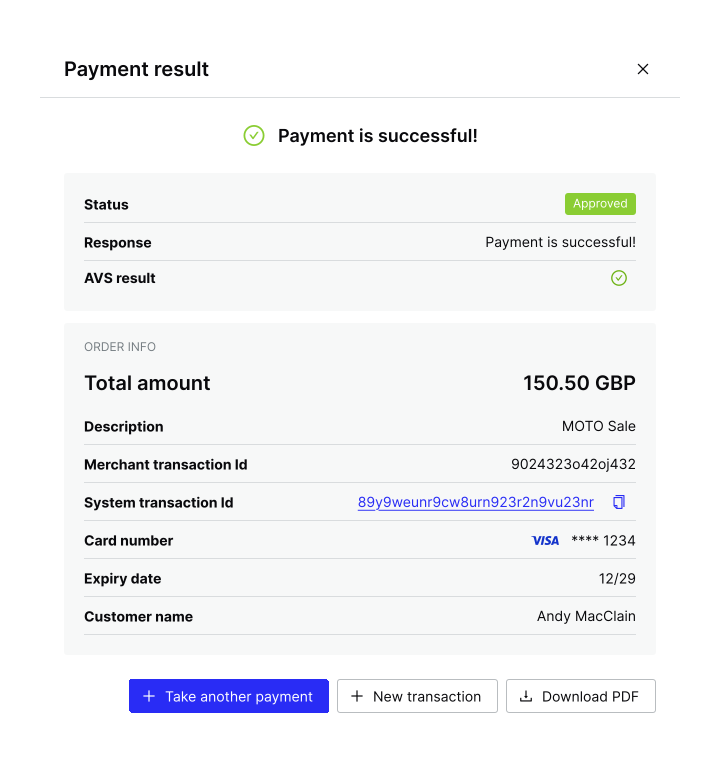
From this modal, you can:
- Take another payment: Choose this to take another payment from the same customer. All customer details will be pre-populated for you, but the transaction details will be cleared.
- New transaction: Choose this to take a new payment from another customer. The form will be fully cleared.
- Download PDF: Choose this to download a PDF copy of the receipt to your device's default download location. The filename includes the transaction reference number for easy identification.
Learn more about receipts and transaction details.
| Issue | Next steps |
|---|---|
| Transaction declined | If a transaction is declined:
|
| Validation errors | If you see validation errors:
|
| AVS failure | If AVS verification fails but transaction is approved:
|
| Receipt modal doesn't appear | If the receipt modal doesn't appear:
|
| PDF download fails | If the PDF download fails:
|