Activate and configure the Virtual Terminal service in the Unity Portal.
To enable the service, you'll need to have the Global Admin role.
To use Virtual Terminal, you first need to enable it at the merchant group or merchant level.
- In the Unity Portal, go to Merchant setup > Merchant groups.
- Select the merchant group for which you want to enable Virtual Terminal.
- Click the Services tab.
- Find the Virtual Terminal service row.
- Toggle the Enabled switch to ON.
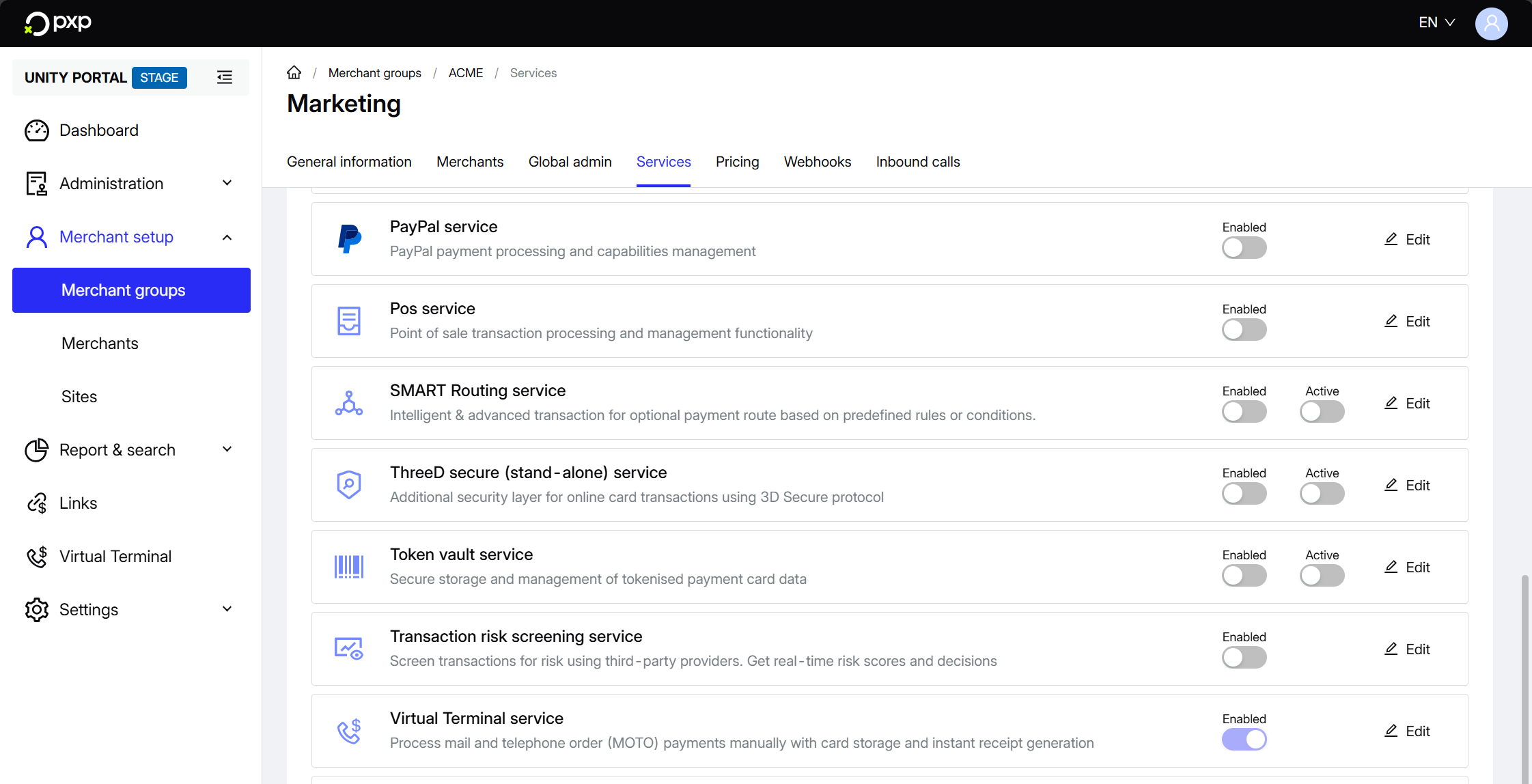
Your Virtual Terminal service is now enabled, but you still need to activate it for specific sites in order to use it.
Optionally, you can configure Address Verification System (AVS) settings and/or set a default description for Virtual Terminal transactions.
Note that when AVS is enabled, billing addresses entered by operators will be verified against card issuer records during transaction authorisation. This provides additional fraud protection but may impact approval rates for legitimate transactions with address mismatches.
To configure the Virtual Terminal service:
- In the Unity Portal, go to Merchant setup > Sites.
- Select the site you want to configure AVS for.
- In the Services tab, find the Virtual Terminal service row and click Edit.
- Find the Address Verification System (AVS) section.
- Toggle AVS to ON to enable address verification for transactions processed through this site.
- Enter a default description in the Order description field.
- Click Save in the top right to confirm.
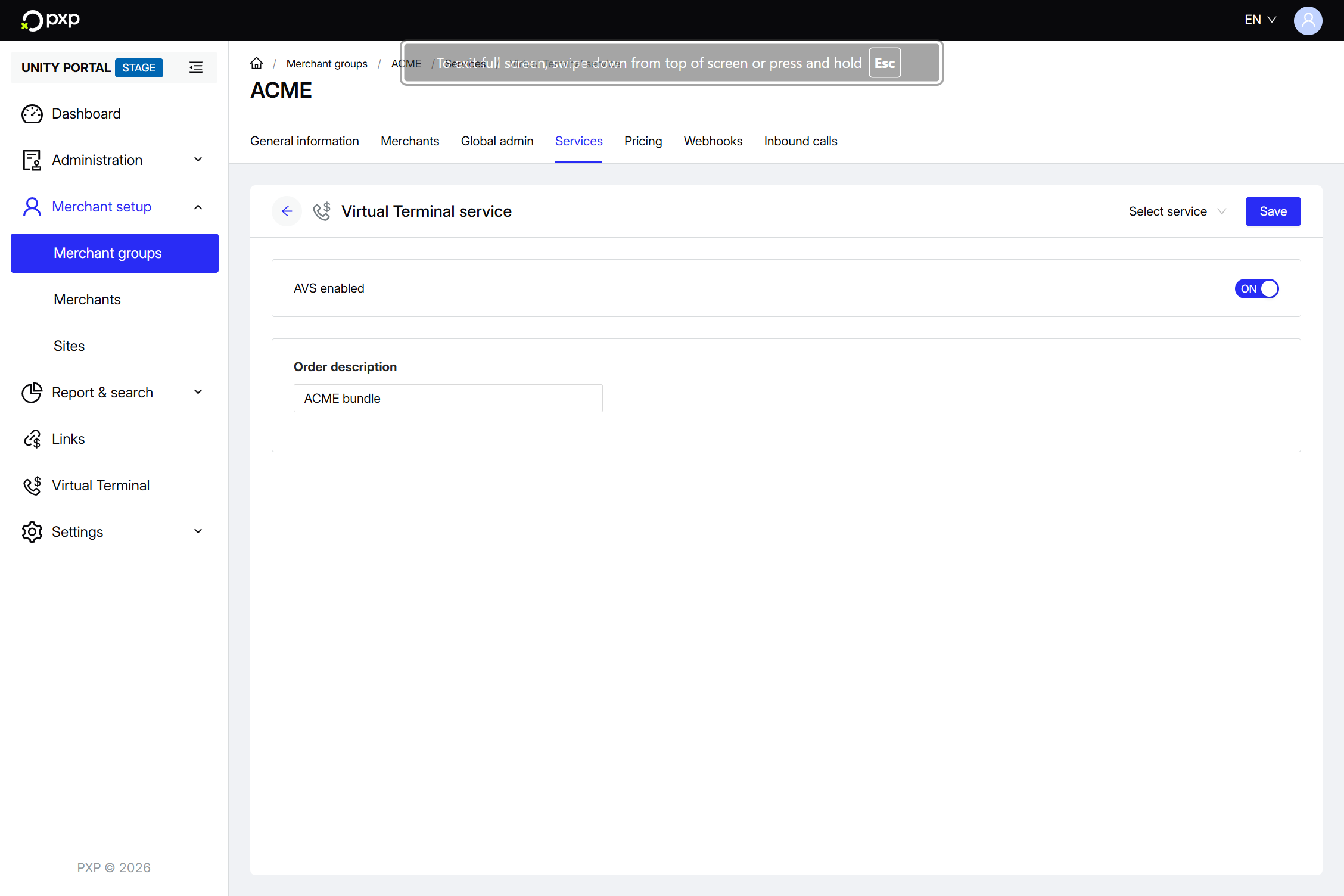
Your service is configured. These settings are automatically inherited by any merchants or sites associated with the merchant group. However, you can override these settings at the merchant or site level by going to the relevant Services tabs.
After enabling Virtual Terminal, you need to activate it for specific sites:
- In the Unity Portal, go to Merchant setup > Sites.
- Select the site for which want to enable Virtual Terminal.
- Click the Services tab.
- Find the Virtual Terminal service row.
- Toggle the Active switch to ON.
- Click Save in the top right to confirm.
Repeat this process for each site where you want to enable MOTO payment processing.
To allow operators to use Virtual Terminal, you need to assign appropriate permissions:
- In the Unity Portal, go to User management > Users.
- Select the user you want to grant Virtual Terminal access to.
- Click the Permissions tab.
- Ensure the user has one of the following roles:
- Merchant Administrator: For full access including configuration.
- MOTO Operator: For transaction processing using the Virtual Terminal and access to reporting (for PDF receipts).
- Ensure the user's scope includes the merchant group and sites where Virtual Terminal is enabled.
- Click Save in the top right to confirm.
Your Virtual Terminal is now configured and you can initiate transactions.