Learn about receipt contents and how to access detailed reporting.
After successfully processing a transaction, a receipt modal automatically displays with complete transaction details.
If you accidentally close the receipt modal, you can still access transaction details in the Unity Portal's Report & search section using the transaction reference number.
The receipt modal displays all relevant transaction information organised into clear sections.
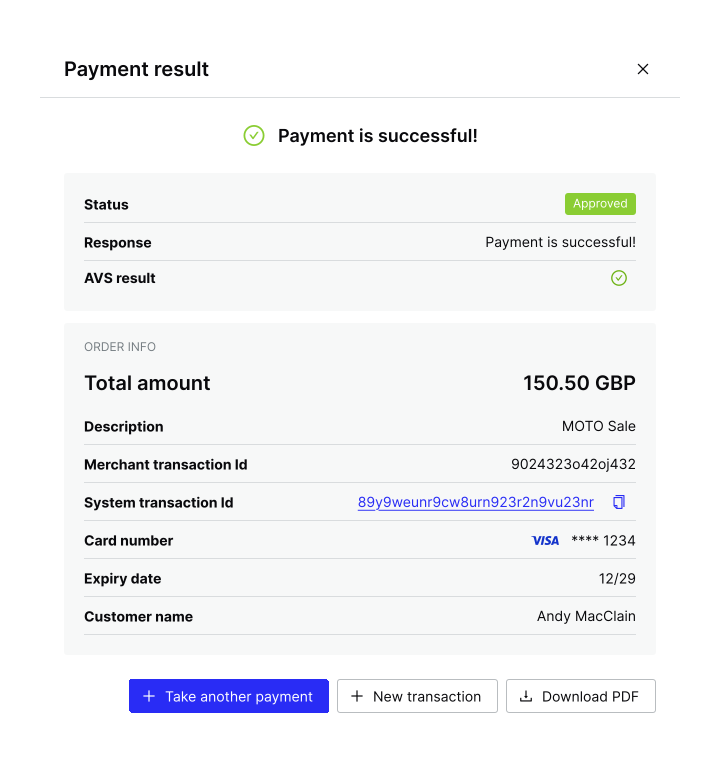
At the top of the receipt, you can see:
- Status badge: Displays the transaction status (e.g., "Approved") with a colour-coded status code — green for approved, red for declined.
- Response message: The gateway response (e.g., "Payment is successful!" or a specific decline reason).
- AVS result: If AVS is enabled, the address verification match status.
In the Order info section, you can see:
- Total amount: The transaction amount with currency (e.g.,
150.50 GBP). - Description: The transaction description from the order form.
- Merchant transaction ID: Your unique transaction identifier.
- System transaction ID: A unique transaction identifier assigned by PXP. Click the ID to open transaction details in Unity reporting, or click the copy icon to copy it to your clipboard.
- Card details: Card brand logo, masked card number (last four digits), and expiry date.
- Customer name: The customer's full name.
To generate a PDF receipt, click Download PDF. The PDF downloads to your device's default download location. The filename includes the transaction reference number for easy identification.
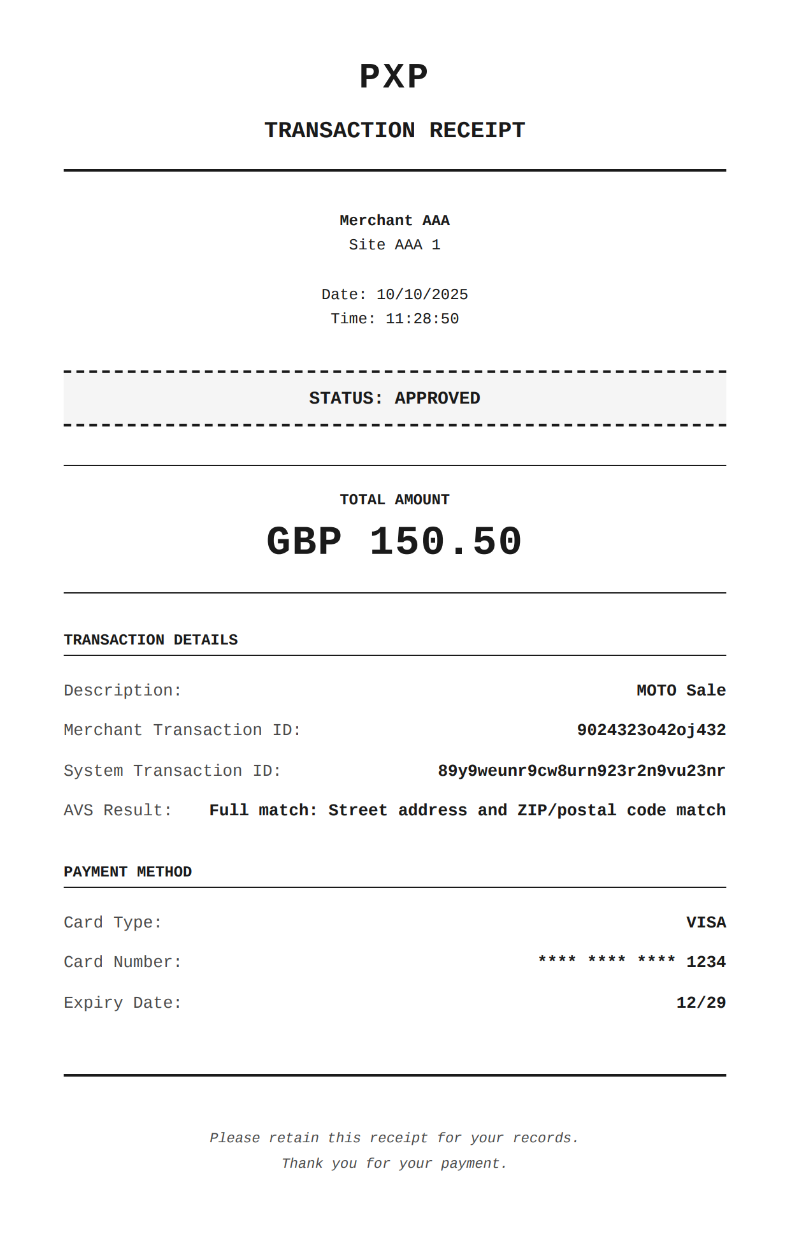
At the top of the receipt, you can see:
- Your company name, the merchant display name, and site name.
- The transaction date and time.
- The transaction status, total amount, and currency.
In the Transaction details section, you can see:
- Description: The transaction description from the order form.
- Merchant transaction ID: Your unique transaction identifier.
- System transaction ID: A unique transaction identifier assigned by PXP.
- AVS result: If AVS is enabled, the address verification match status.
In the Payment method section, you can see:
- The card type.
- The masked card number (last four digits).
- The expiry date.
PDF receipts use the logo and display name configured in your site's branding settings. Update these in Merchant setup > Sites > Branding in the Unity Portal.
After downloading, you can:
- Email: Attach the PDF to an email to the customer.
- Print: Print for mailing or to include with shipments.
- Archive: Store according to your record retention policy.
To access the full transaction details, click the Reference number in the receipt modal to open the transaction detail page directly in the Unity Portal's Report & search section.
This provides:
- Transaction log: Full timeline of events from initiation to completion.
- Gateway communication: Detailed request and response data.
- AVS results: Breakdown of address verification (if enabled).
- Related transactions: Links to refunds, chargebacks, or parent transactions.
- Metadata: Transaction source, entry method, operator ID, and site context.
If the reference link doesn't worker, verify you're still logged into the Unity Portal and that you have reporting permissions. Try copying the reference and searching manually in the Report & search section. |
For customer service:
- Generate and email receipts while the customer is on the phone.
- Use the reporting link to answer customer questions about their transaction.
- Read back the total and last four card digits for confirmation.
For record keeping:
- Use the transaction reference number in receipt filenames.
- Store receipts securely according to PCI-DSS requirements.
- Maintain copies for accounting and audit purposes.
PDF receipts contain sensitive payment information:
- Store receipts securely and limit access based on business need.
- Follow your organisation's data retention policy.
- Don't email receipts to unverified email addresses.
- Use secure delivery methods (encrypted email, secure portals).
Remember that receipts supplement the audit trail in the Unity Portal 's reporting system — use both for complete records.