Complete an in-store card purchase with optional gratuity or service charge and split billing.
For standard purchase, follow these steps:
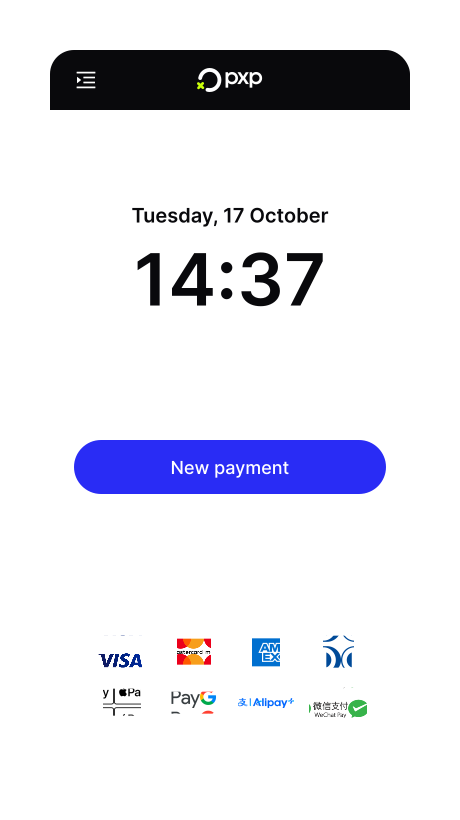
- On the Home screen, tap New payment.
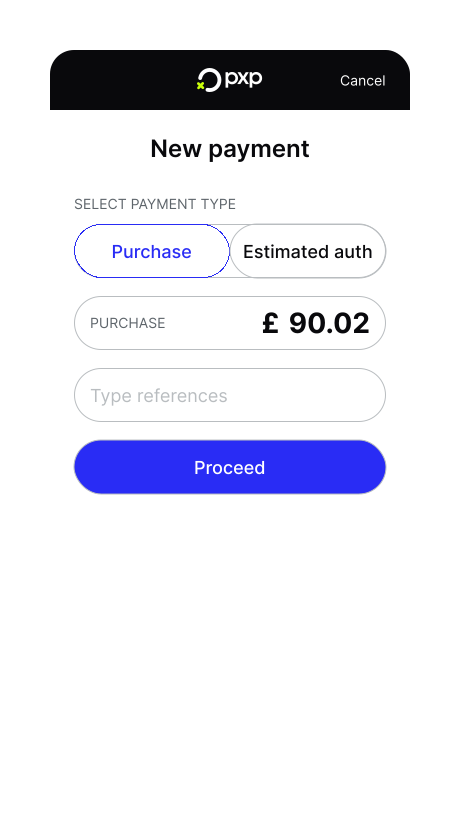
- Select Purchase and enter the transaction amount. You can also edit the auto-filled reference if needed.
- Tap Proceed to continue.
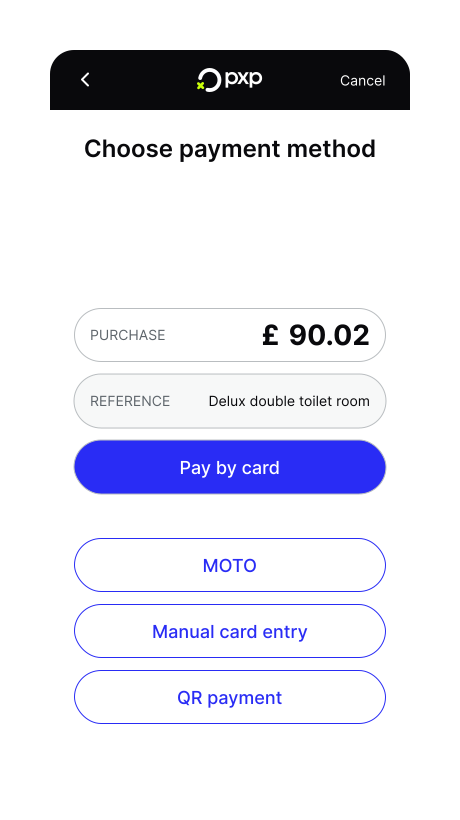
- Choose Pay by card from the payment method options.
- Ask the customer to tap or insert their card. The payment begins processing automatically. If required, the customer is prompted to enter their PIN.
Once the transaction is authorised, the payment is completed and your merchant receipt is printed.
When gratuity is enabled on your POS device, customers have the option to add a tip to their purchase. The gratuity selection screen appears after entering the transaction amount and before the payment screen, allowing customers to choose from pre-configured tip percentages, enter a custom amount, or proceed without adding a tip.
Before using gratuity, ensure it's configured at the site level and enabled for your device. Learn how to enable gratuity.
When gratuity is enabled on your device, customers can add a tip before completing their payment:
- On the Home screen, tap New payment.
- Select Purchase and enter the transaction amount. You can also edit the auto-filled reference if needed.
- Tap Proceed to continue.
- Choose Pay by card from the payment method options.
- The gratuity selection screen appears, displaying the purchase amount and tip options:
- Your three pre-configured percentage amounts (displayed with 1, 2, or 3 stars).
- A custom amount option.
- A no tip option.
- Proceed to the payment screen:
- If the customer chooses to tip:
- Tap one of the percentage buttons to automatically calculate the tip. The button below changes to Proceed - with tip and displays the new total amount (original amount plus tip). Tap it to continue to the payment screen.
- Tap Other amount to enter a specific tip value. The button below changes to Proceed - with tip and displays the new total amount (original amount plus tip). Tap it to continue to the payment screen.
- If the customer chooses not to tip:
- Tap Proceed - no tip to continue to the payment screen without adding gratuity.
- If the customer chooses to tip:
- Ask the customer to tap or insert their card. The payment begins processing automatically for the total amount including the tip. If required, the customer is prompted to enter their PIN.
Once the transaction is authorised, the payment is completed and your merchant receipt is printed. The receipt shows the original purchase amount and the tip amount as separate line items.
Receipts for transactions with gratuity include:
- The original purchase amount.
- The tip amount (displayed separately).
- The total amount charged.
- Standard transaction details (date, time, card details, etc.)
When service charge is enabled on your POS device, you can add mandatory or voluntary service charges to purchase transactions. Service charges provide flexible pricing models for situations like group bookings or special events.
Before using service charges, ensure the feature is configured at the site level and enabled for your device. Learn how to enable service charges.
- On the Home screen, tap New payment.
- Select Purchase and enter the transaction amount. You can also edit the auto-filled reference if needed.
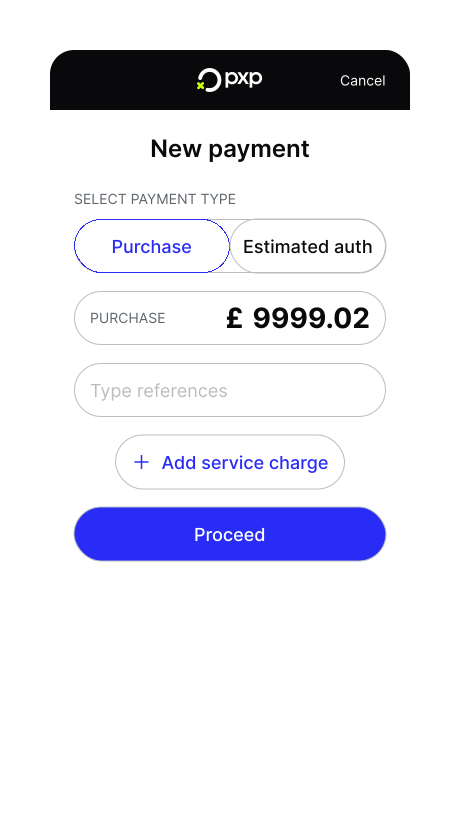
- Tap + Add service charge.
- The service charge overlay opens. By default, the service charge is set to 10% and marked as optional. You can use the slider to adjust the percentage and the toggle to mark the service charge as mandatory.
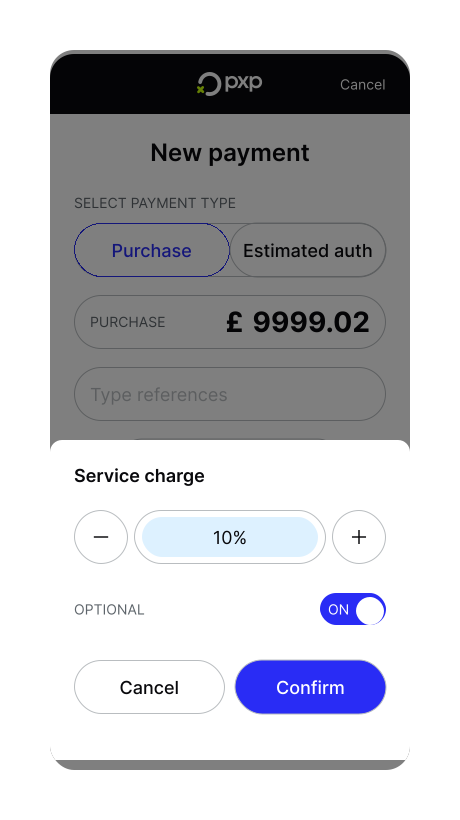
- Tap Confirm. For mandatory service charges,
- Tap Proceed to continue.
- Complete the payment:
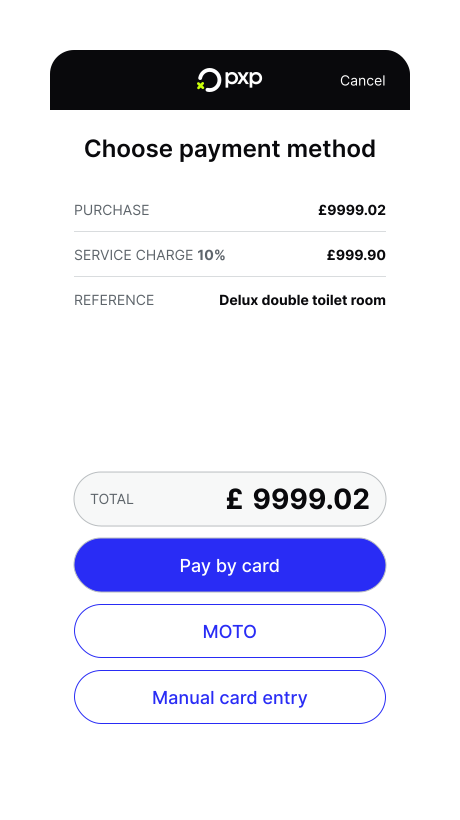
- If the service charge is mandatory, the device automatically calculates the service charge and displays the new total amount (original amount plus service charge). Choose Pay by card from the payment method options.
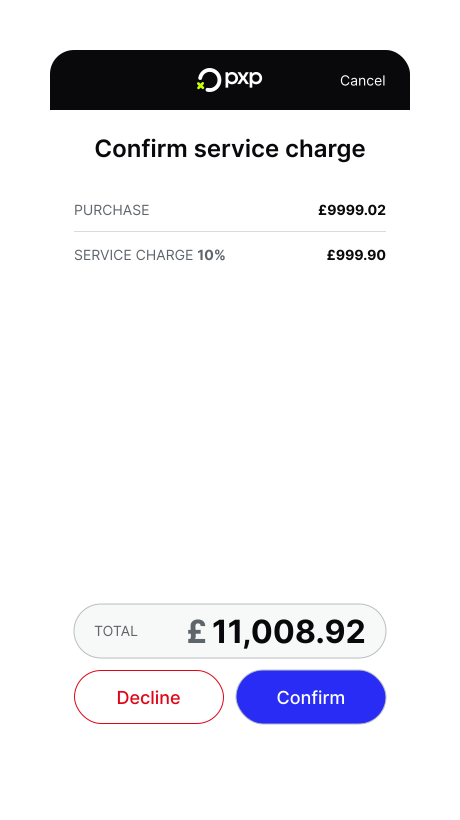
- If the service charge is optional, then a screen is displayed to the customer to confirm the service charge. If the customer accepts, tap Confirm. If the customer refuses, tap Decline.
- Ask the customer to tap or insert their card. The payment begins processing automatically for the total amount including the service charge. If required, the customer is prompted to enter their PIN.
Once the transaction is authorised, the payment is completed and your merchant receipt is printed.
If the service charge was mandatory, the receipt shows the original purchase amount and the service charge amount as separate line items. If the customer accepted the voluntary service charge, this amount is shown as Gratuity on the receipt and will be included in the tip amounts for reporting purposes.
Split billing allows you to divide a bill among multiple payers, making it ideal for group dining and shared purchases. You can split bills equally among a specified number of payers or by custom amounts. The device tracks the remaining balance and notifies you when the full bill has been paid. You can use different payment methods for each split payment, giving customers flexibility in how they pay their portion of the bill.
Before using split billing, ensure it's configured at the site level and enabled for your device. Learn how to enable split billing.
- On the Home screen, tap New payment.
- Select Purchase and enter the transaction amount. You can also edit the auto-filled reference if needed.
- Tap Proceed to continue.
- On the payment method screen, choose Split bill.
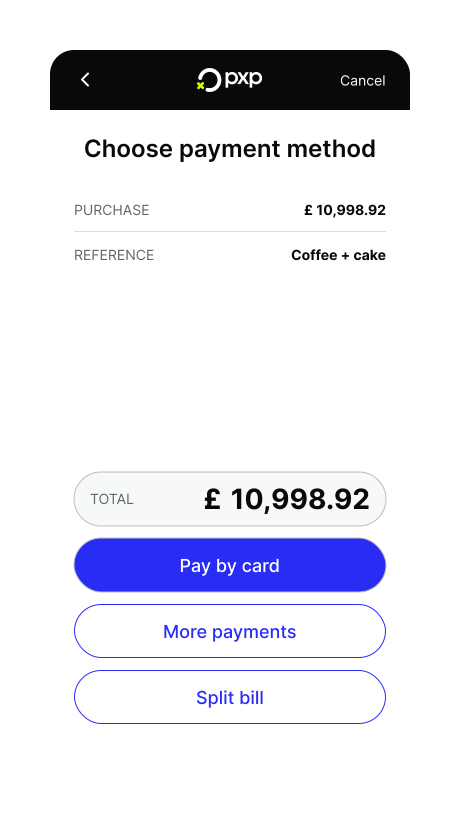
- The split billing overlay opens. By default, the bill is split into two equal parts. You can use the slider to adjust the number of payers and use the toggle to switch to custom parts instead.
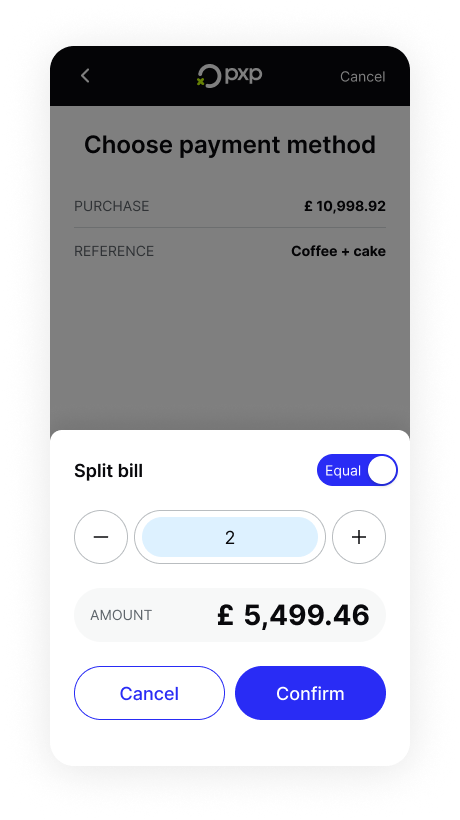
- Tap Confirm to proceed to the split bill dashboard.
- Complete the first payment:
- If the split was equal, the app calculates the amount owed. Tap Pay by card to process the first payment (or choose an alternative payment method if needed).
- If the split was custom, you'll need to enter the amount that the first payer wants to pay. Tap Pay by card to process the first payment (or choose an alternative payment method if needed).
- Ask the first customer to tap or insert their card. The payment begins processing automatically. If required, the customer is prompted to enter their PIN.
Once the payment is authorised, a customer receipt is printed and the device returns to the split bill dashboard.The dashboard updates to show the remaining balance. Repeat steps 7 and 8 for each subsequent payment until the full bill is paid.
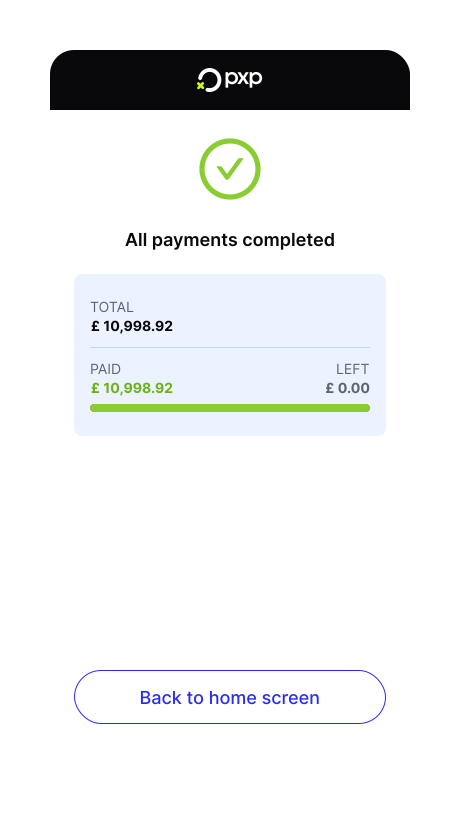
When all payments are complete, the device notifies you that the bill has been fully paid.